Once all the configurations are completed at both the Super Admin and Customer Admin levels, the end user will be able to access the documents in the Hamara HR mobile app.
In Mobile app
Navigate to: HR Page → My Activities → Documents
Here, the user will be able to view all the documents configured for their role group under the HR Documents setup in the Customer Admin.
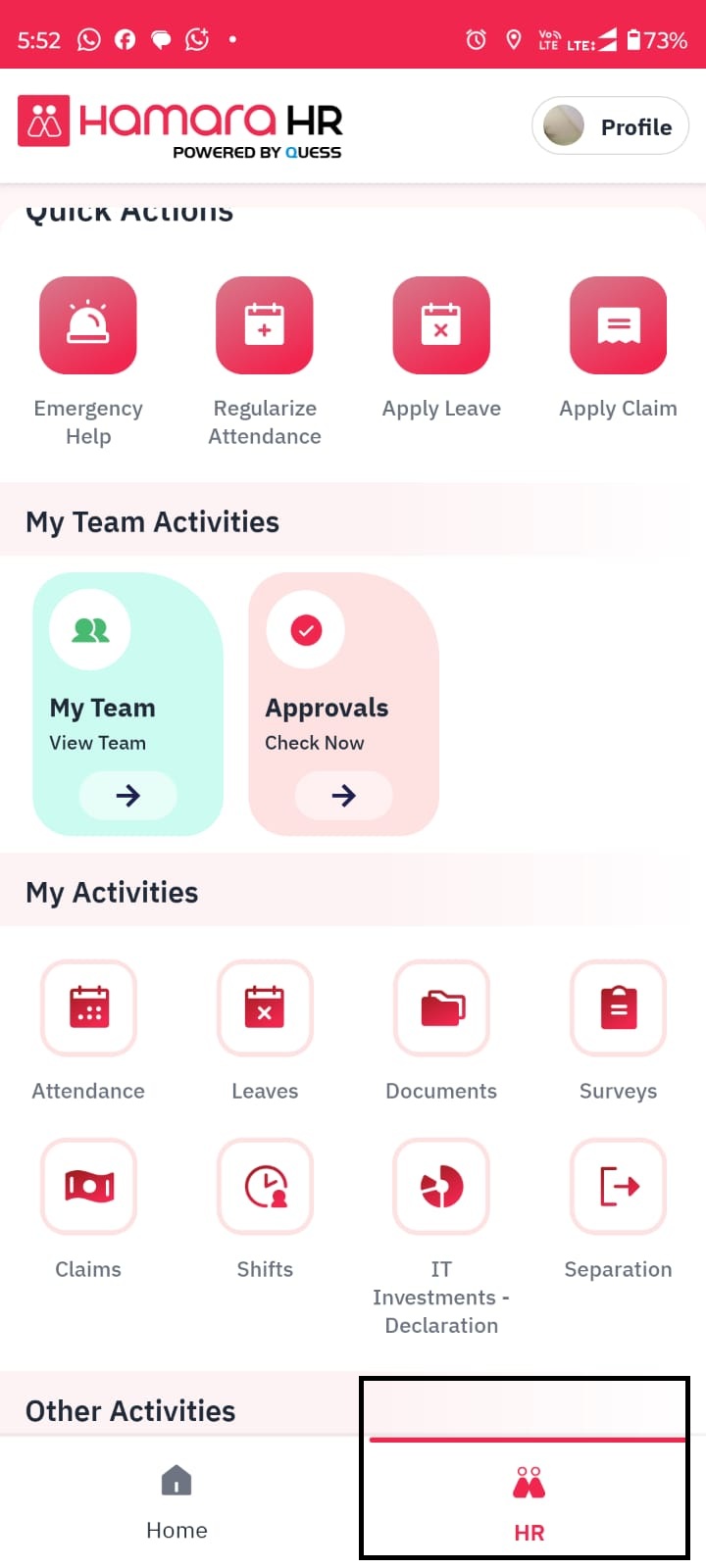
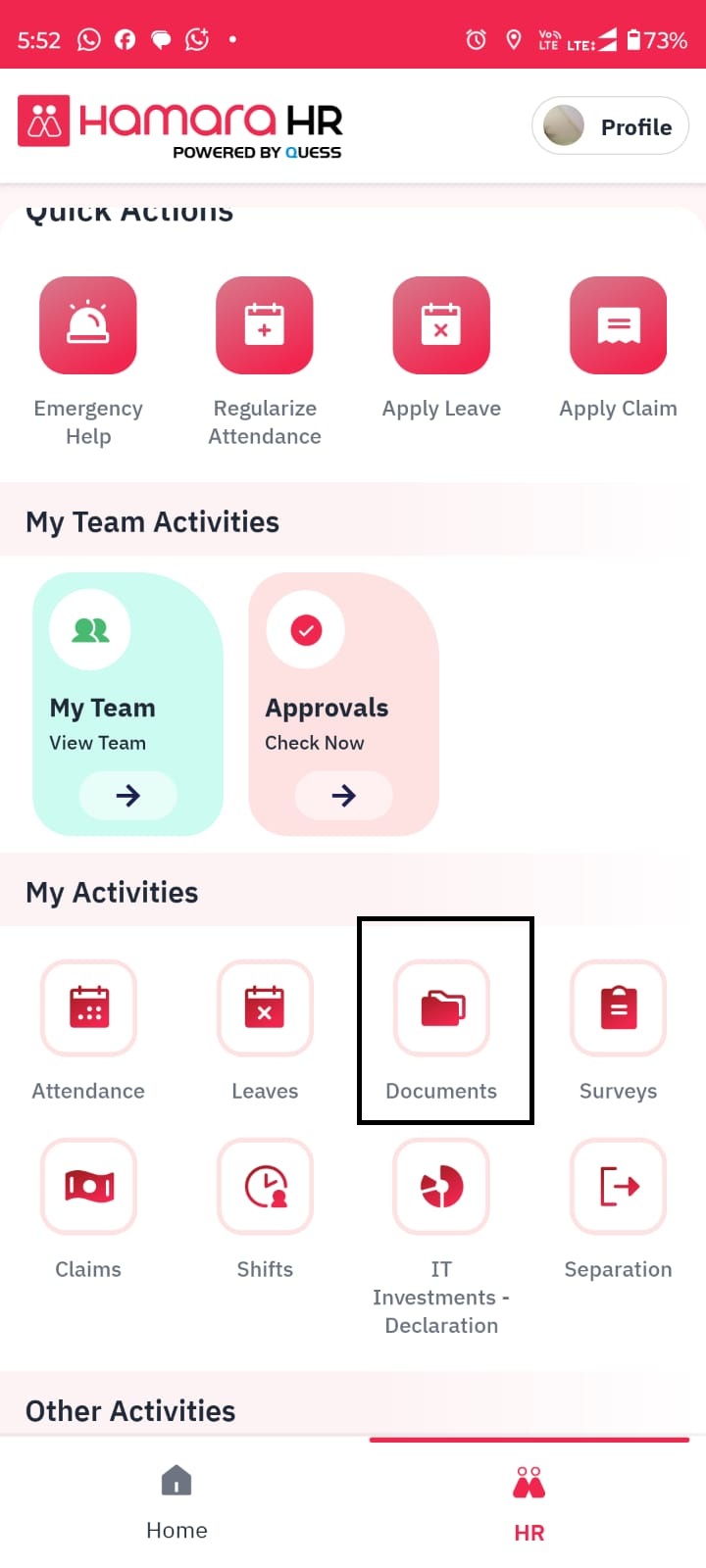
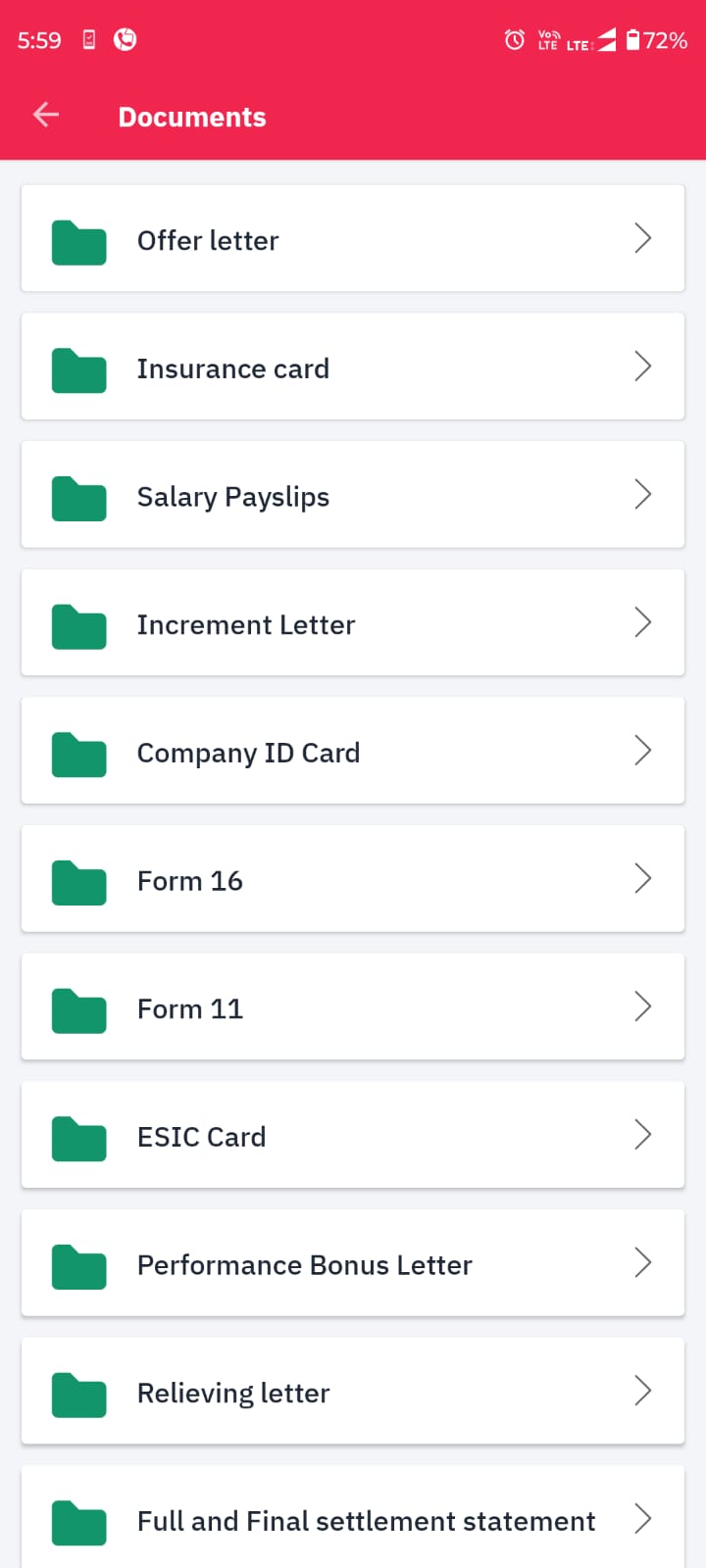
Click on the respective folder to fetch the required documents.
- Fetching Payslip and IT Computation:
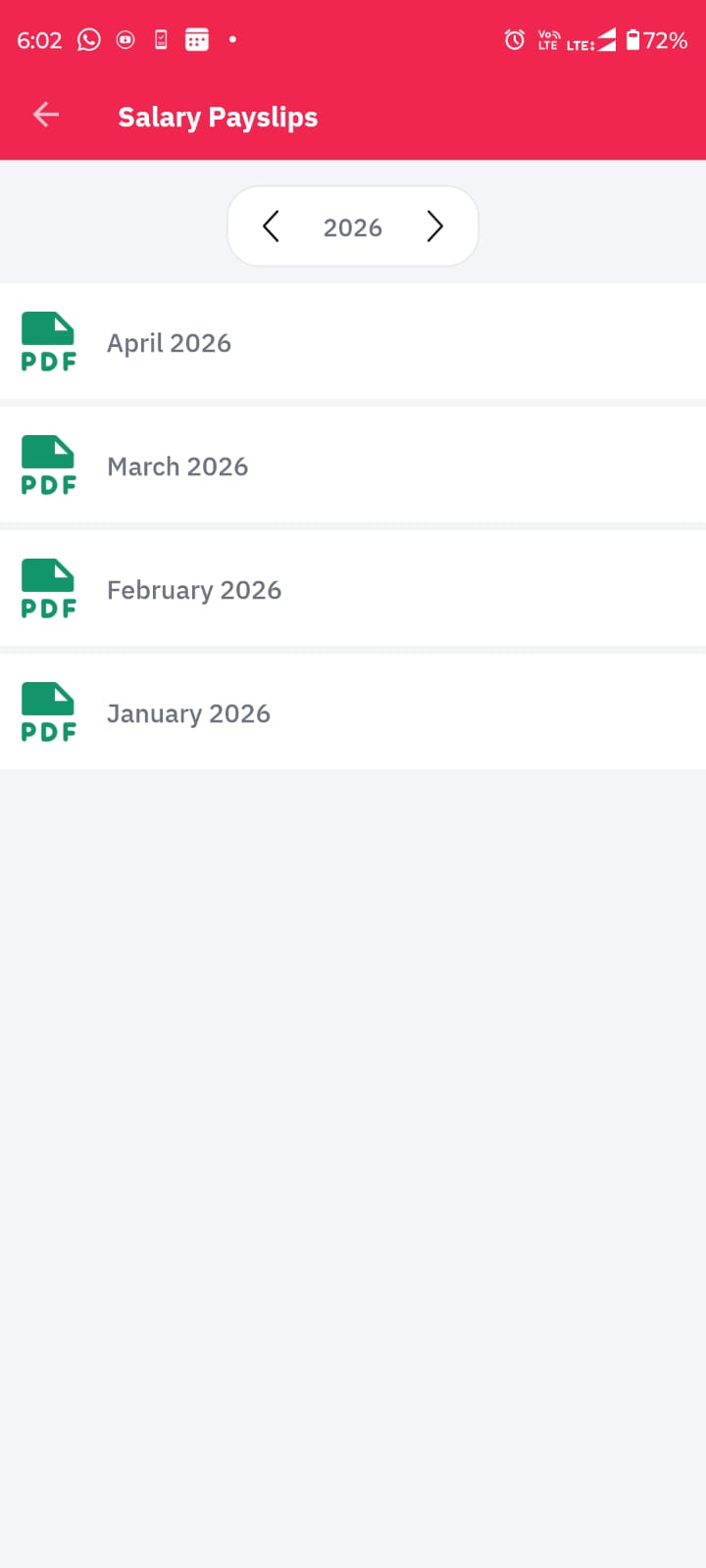
For example, in the Salary Payslip section, you can view payslips organized year-wise and month-wise. Upon selecting the respective month, the particular document can be accessed.
If you need to fetch payslips from previous years, click on the arrow next to the displayed year (e.g., 2025) to navigate and select the required year and month folder
As like as salary slip you can also fetch the same for IT computation too.
- Fetching Offer letter and relieving letter:
Clicking on the folder you can fetch the letter directly for offer letter and relieving letter.
- Fetching the Insurance Card and Form 11:
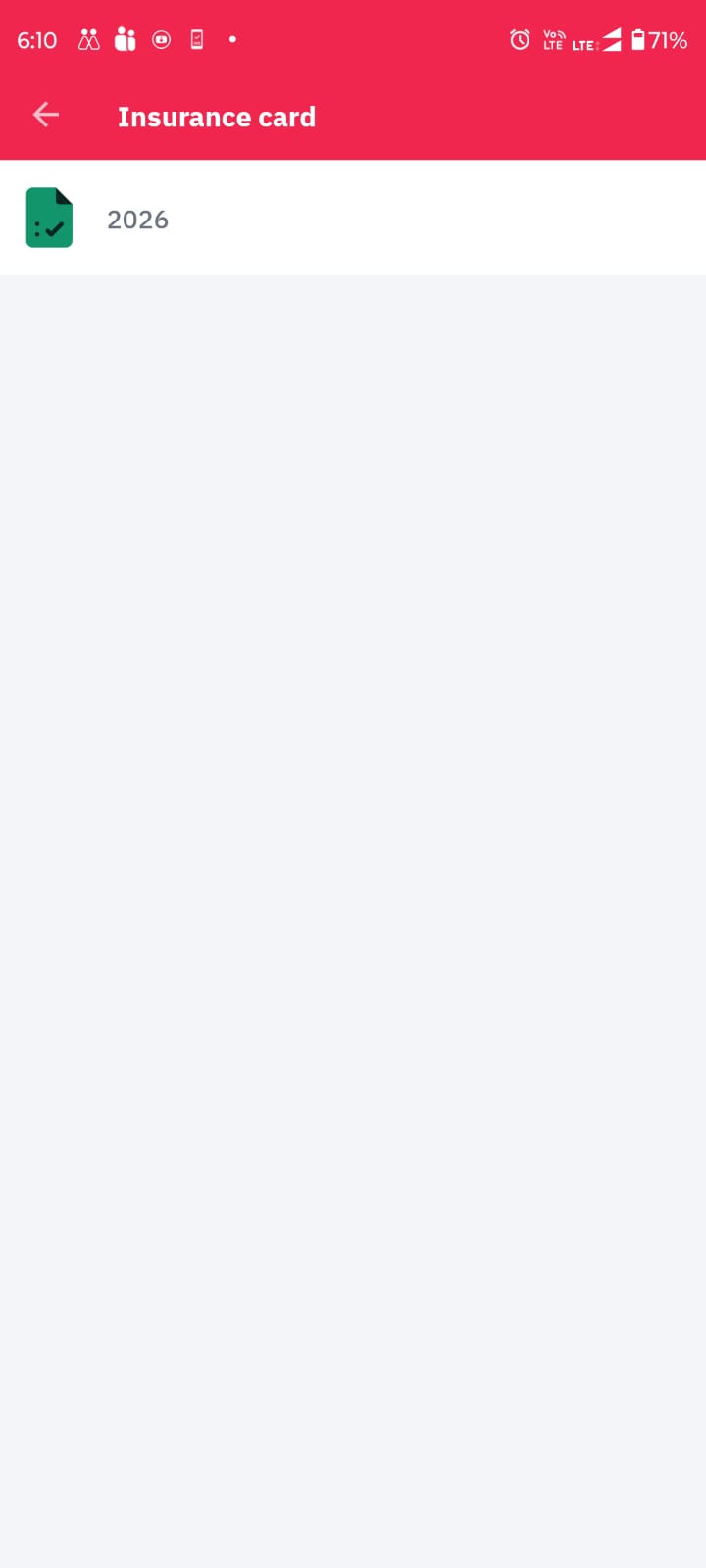
By clicking on the Insurance Card folder, you will be able to view the documents organized year-wise.
Select the particular year to fetch the document.
As like as insurance card you can also fetch the same for Form 11 too.
- Fetching the Form 16:
Click on the respective year range to access and download the required document.
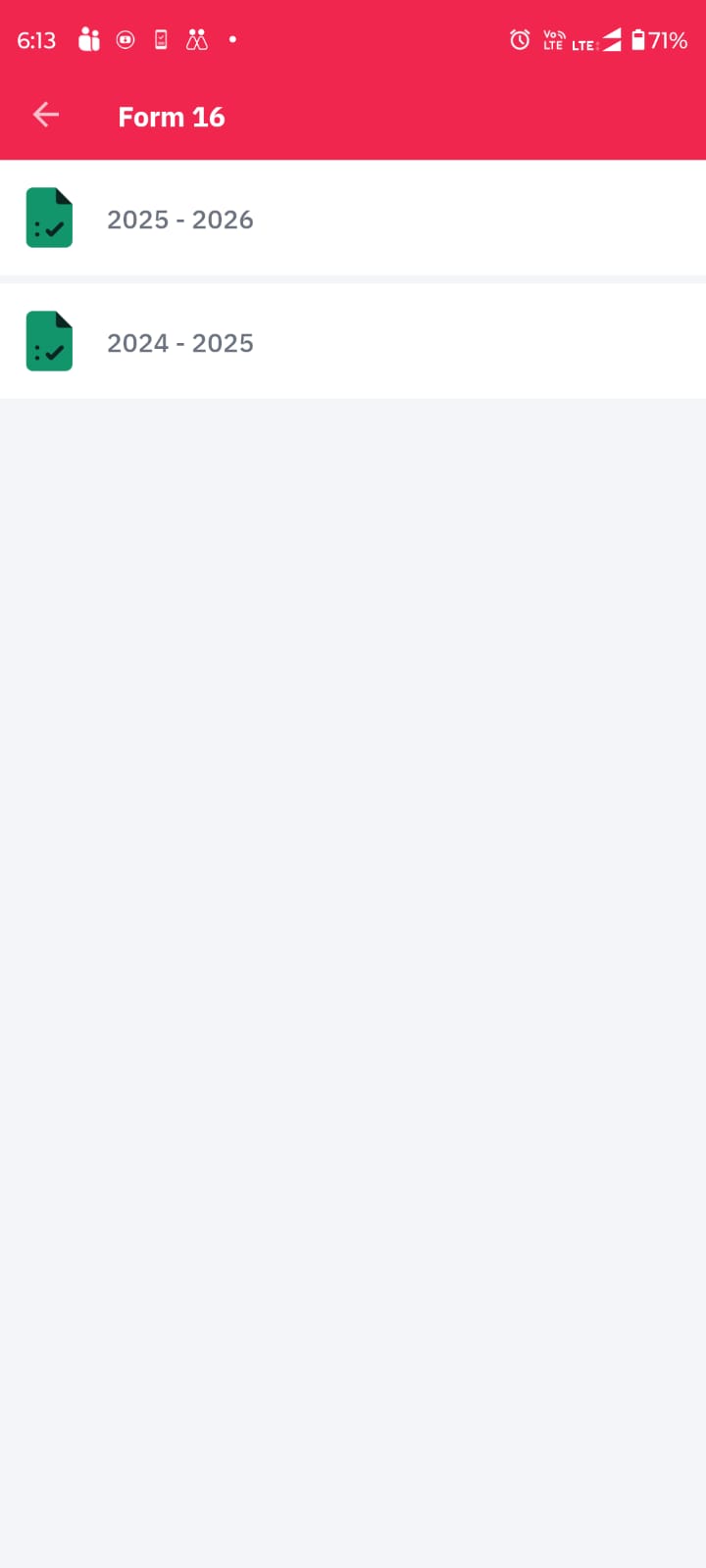
Click on the respective year range to access and download the required document.
Similarly other documents can also be accessed.
Was this article helpful?
That’s Great!
Thank you for your feedback
Sorry! We couldn't be helpful
Thank you for your feedback
Feedback sent
We appreciate your effort and will try to fix the article