Once the required fields are enabled and the configuration is completed at the Super Admin level, the setup can be configured at the Customer Admin level as follows:
Step 1: Create a Role Group
Navigate to: Setup → Permissions → Role Groups
Create a new role group by entering the required basic details and assign the necessary permissions.
Step 2: Configure HR Documents Setup
Navigate to: Organization → HR Documents → Setup HR Documents
Using the toggle button, you can enable or disable the required documents for the respective role group.
Additionally, you can configure whether a signature is required for the documents.
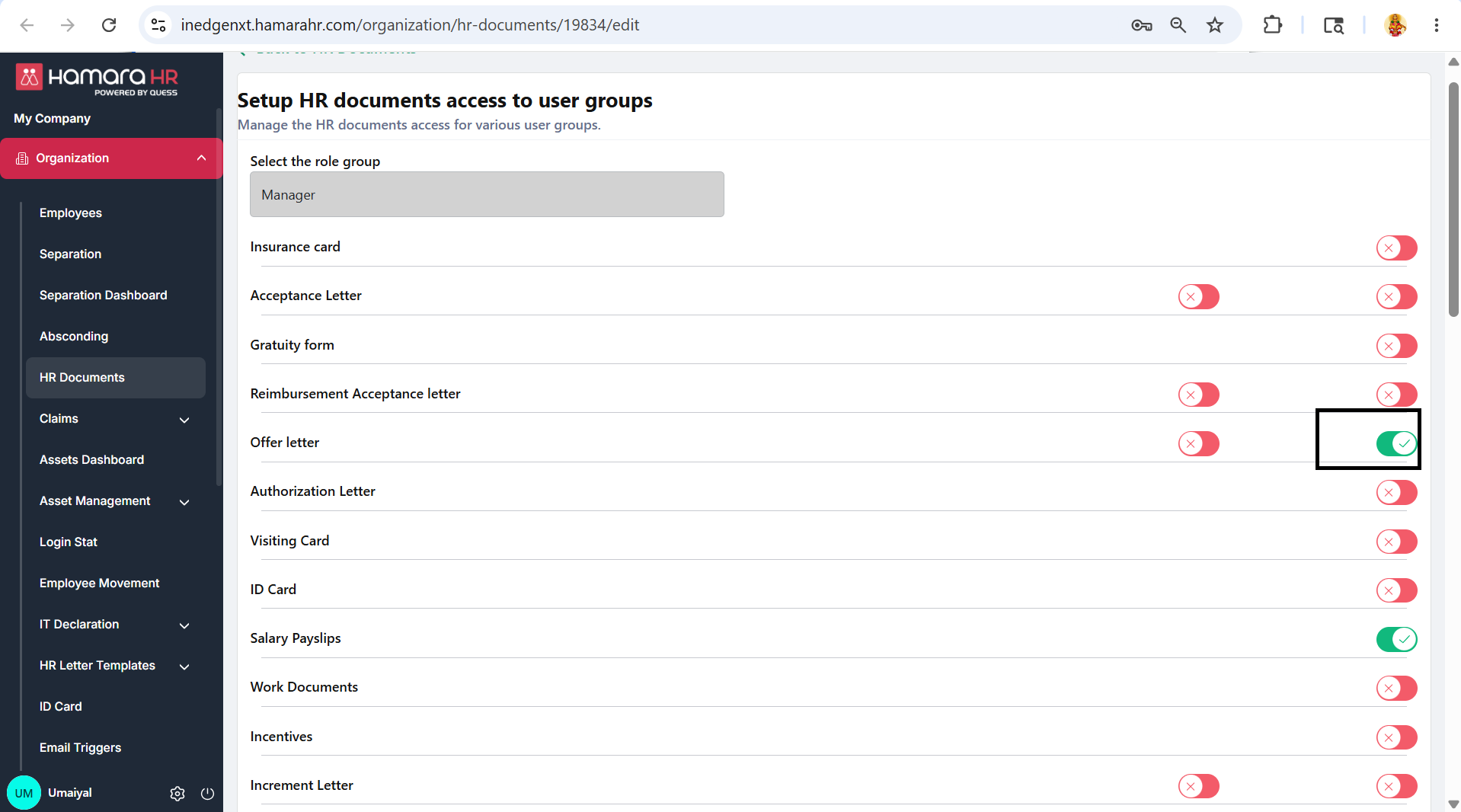
- This toggle button is to enable or disable the required documents folder whether should it be visible for the employee or not
Note: If document access is disabled here, the user will not be able to view any documents under the Documents section.
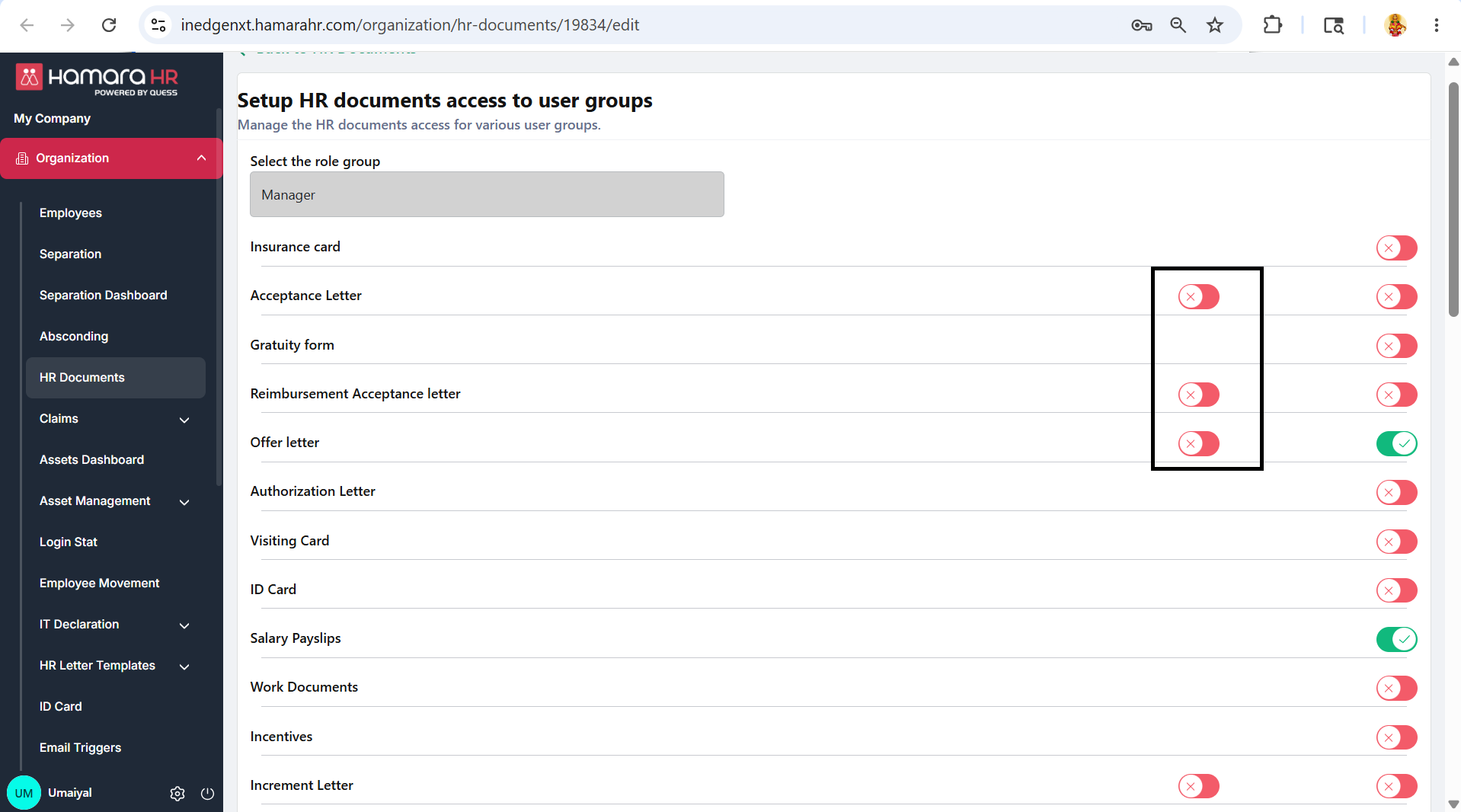
The toggle button available in this section is used to configure whether the respective document requires a signature or not.
Step 3: Admin can able to view the document
Navigate to: Organization → Employees-->Action-->Download HR document-->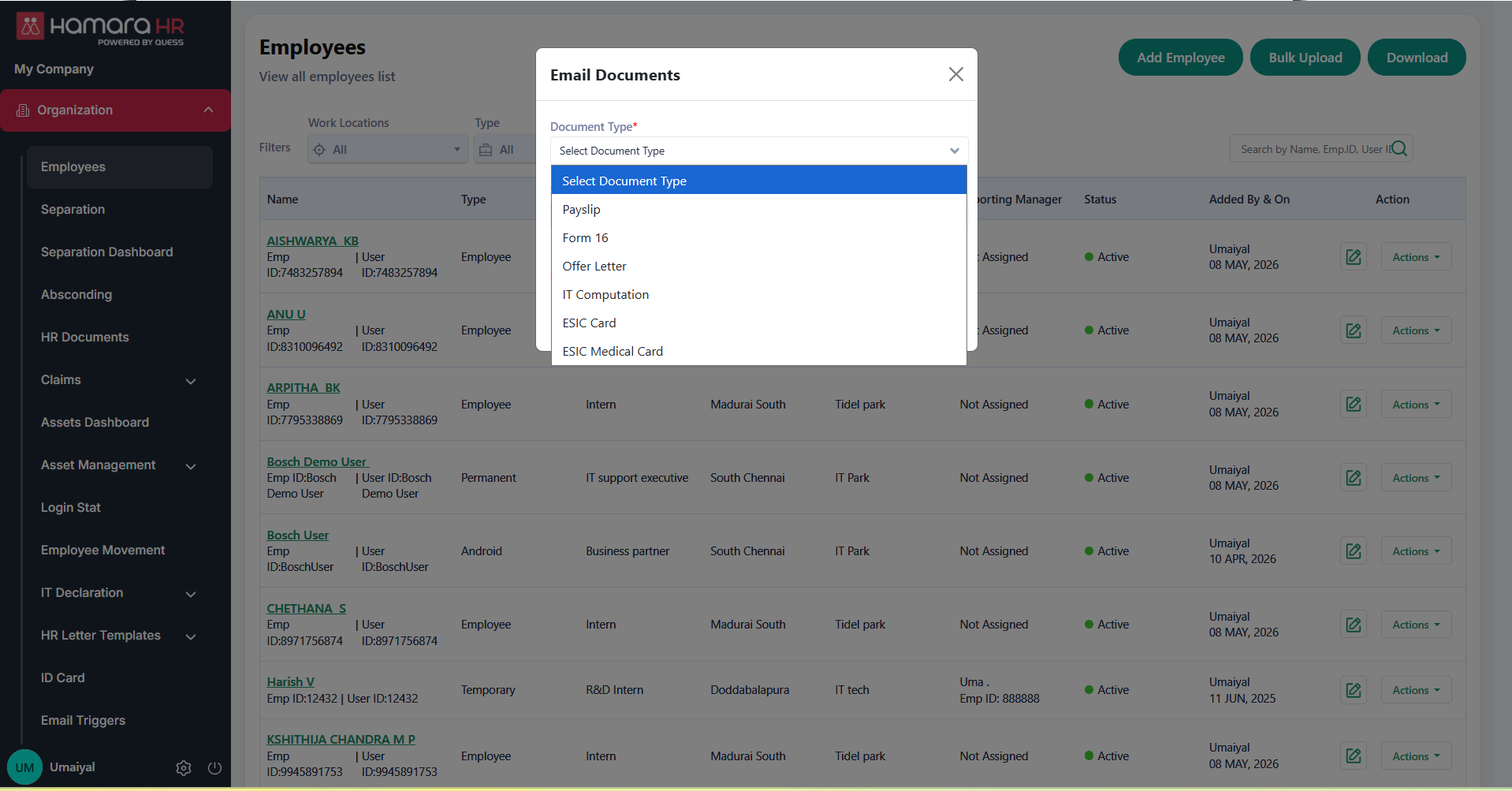
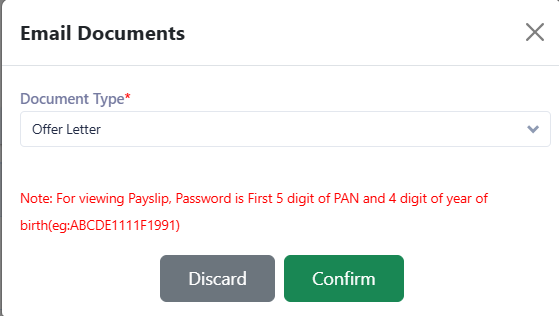
While downloading documents, the system will prompt you to select the required document.
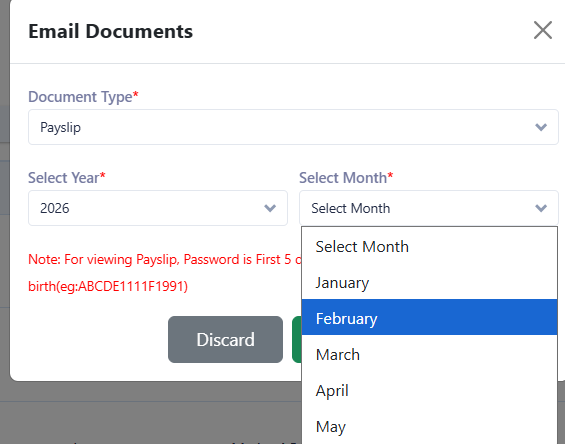
- For documents such as payslips and IT computation, you need to select the Year and Month from the dropdown.
- For other documents like offer letters and ESIC cards, the Year and Month selection is not required, as shown in Screenshot 2.
Was this article helpful?
That’s Great!
Thank you for your feedback
Sorry! We couldn't be helpful
Thank you for your feedback
Feedback sent
We appreciate your effort and will try to fix the article