Please follow the below steps to enable/configure incident management.
Step 1: Create a SPOC Master
Navigate to:
Super Admin → Organization → Incident Management → SPOC Master → Add a SPOC
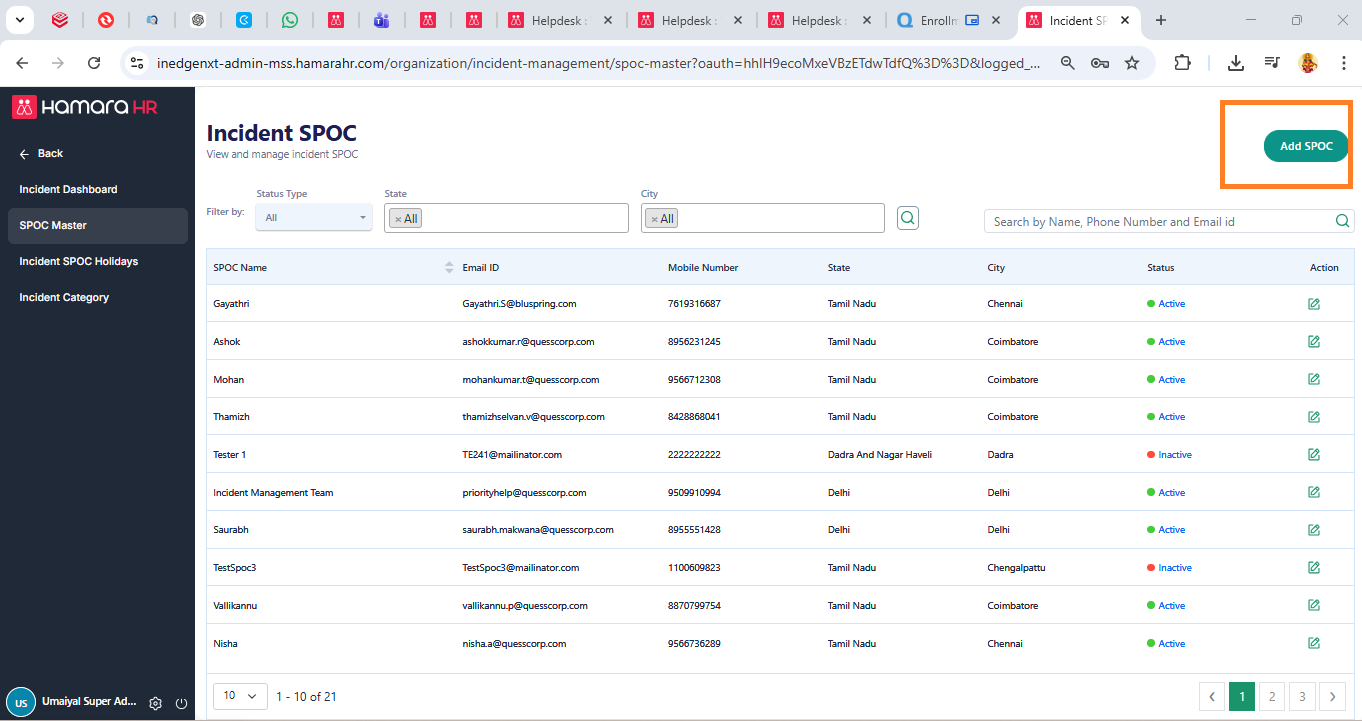
Enter the basic details like Name, Email id, Mobile number
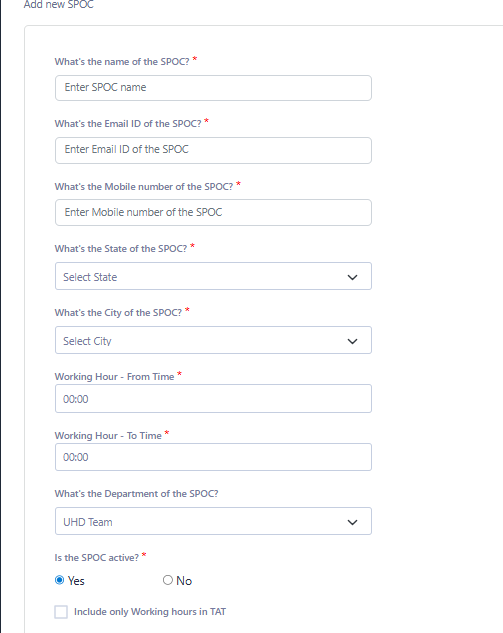
-What's the State of the SPOC? If an incident occurs in a particular state, the SPOC configured for that state will automatically become the responsible person for handling the incident.
-What's the City of the SPOC? If an incident occurs in a particular city, the SPOC configured for that state will automatically become the responsible person for handling the incident.
-Working Hour - From Time Enter the starting time of the SPOC’s working hours
-Working Hour - To Time Enter the ending time of the SPOC’s working hour
(NOTE: Time defines the availability for handling incidents)
-What's the Department of the SPOC? Example: HR team, Helpdesk team
-Is the SPOC active? (Yes/No)
Yes → SPOC is active and will receive incidents
No → SPOC is inactive and will not receive incidents
-Include only Working hours in TAT
If enabled: TAT will calculate only within the defined working hours.
Non-working hours will not be counted.
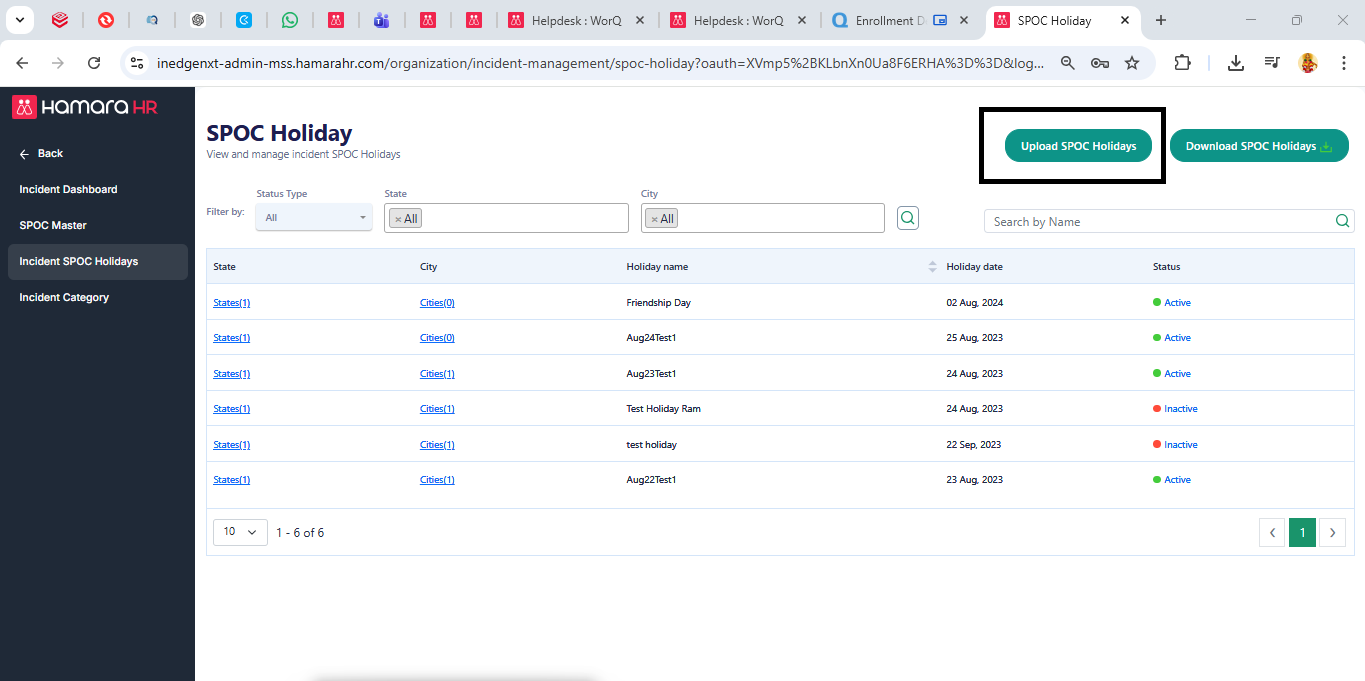
Step 2: Create SPOC Holidays:
Navigate to:
Super Admin → Organization → Incident Management → Upload SPOC Holiday (Only if required)
Steps to Create SPOC Holidays:
Navigate to Upload SPOC Holiday
Download the template
Fill in the required fields in the template
Upload the filled file in the same path
Step 3: Create a Incident Category:
Navigate to:
Super Admin → Organization → Incident Management → Incident Category → Add Incident
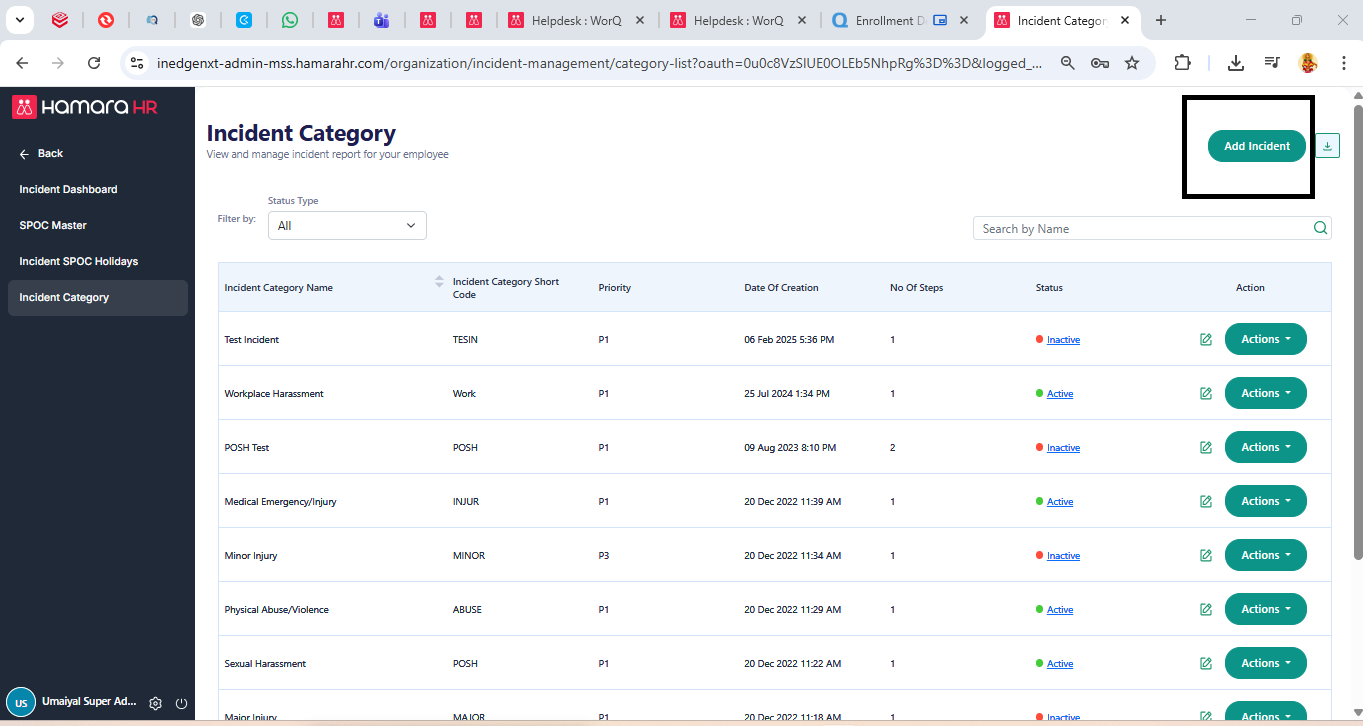
Fields which are listed in Incident Category:
-Name of the incident (Enter the title of the incident category)
-Priority (incident priority Eg: more priority or less priority or medium priority)
-Short code (It's a unique code for tracking)
Steps Required
-Name of the Step (Defines the workflow stages of the incident, Eg: L1, L2 or L3)
-Responsible Person: (person assigned to handle this incident category)
-Process Description: (Defines the action to be performed at that stage)
-TAT: (Turn Around Time)
Defines how many days are given to complete this step.
Example:
2 Days
3 Days
If not completed within TAT → escalation to the next level happen (if enabled)
-Exclude days in TAT
You can exclude:
Week-off days
Holidays
So TAT will count only working days.
Required supporting data:
-Type of supporting data:
Attachment (If enabled → Employees need to attach supporting documents while raising a complaint)
Mandatory (If marked mandatory → Employees must upload documents; otherwise, they cannot submit the complaint)
-If the incident category is Active
Yes → Category is available for use
No → Category is disabled
-Escalate the request to the next level responsible person if the incident is unattended and TAT crossed
If TAT is crossed and no action is taken:
Case moves to next responsible person.
-Escalate the request to the Admin head if the incident is unattended by last responsible person and TAT crossed
If last responsible person fails:
Case escalates to Admin Head.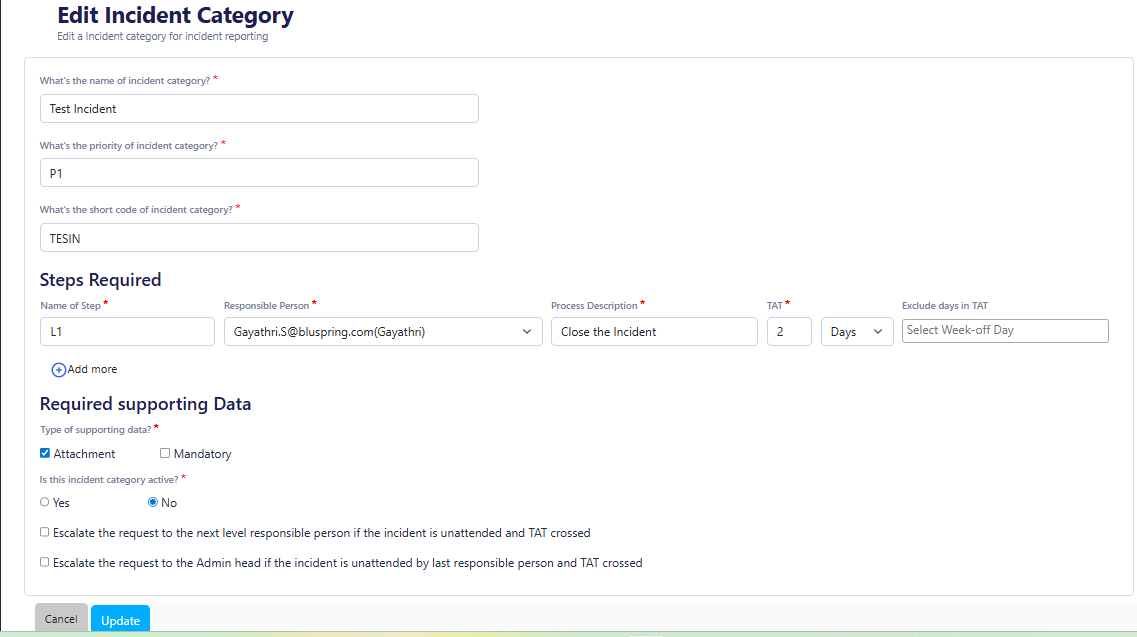
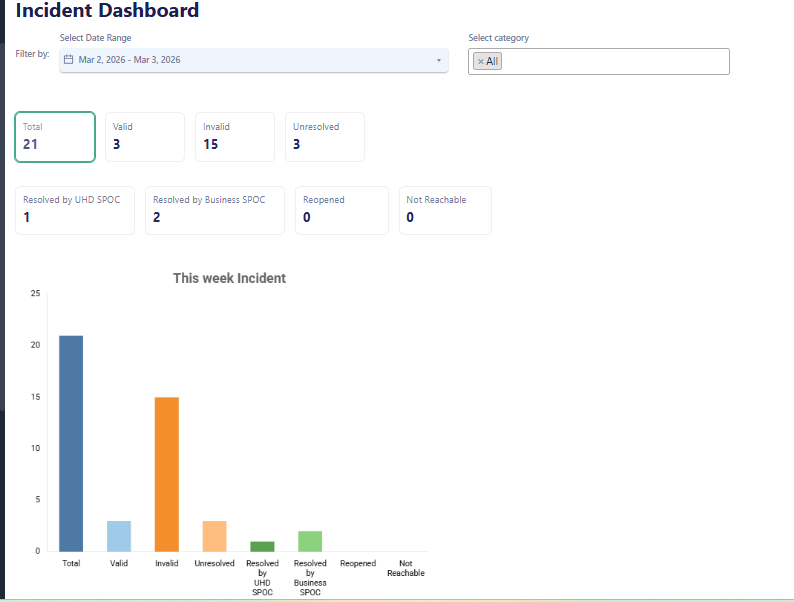
Step 4: Incident dashboard
This shows a summary of incidents in a (bar graph).
It displays:
Open Incidents
Closed Incidents
Pending Cases
It helps in quick monitoring and tracking of cases.
Was this article helpful?
That’s Great!
Thank you for your feedback
Sorry! We couldn't be helpful
Thank you for your feedback
Feedback sent
We appreciate your effort and will try to fix the article