In this article, you will understand how an employee can raise an incident from the Hamara HR App.
Step 1: How to Raise an Incident
Follow the below steps in the mobile application:
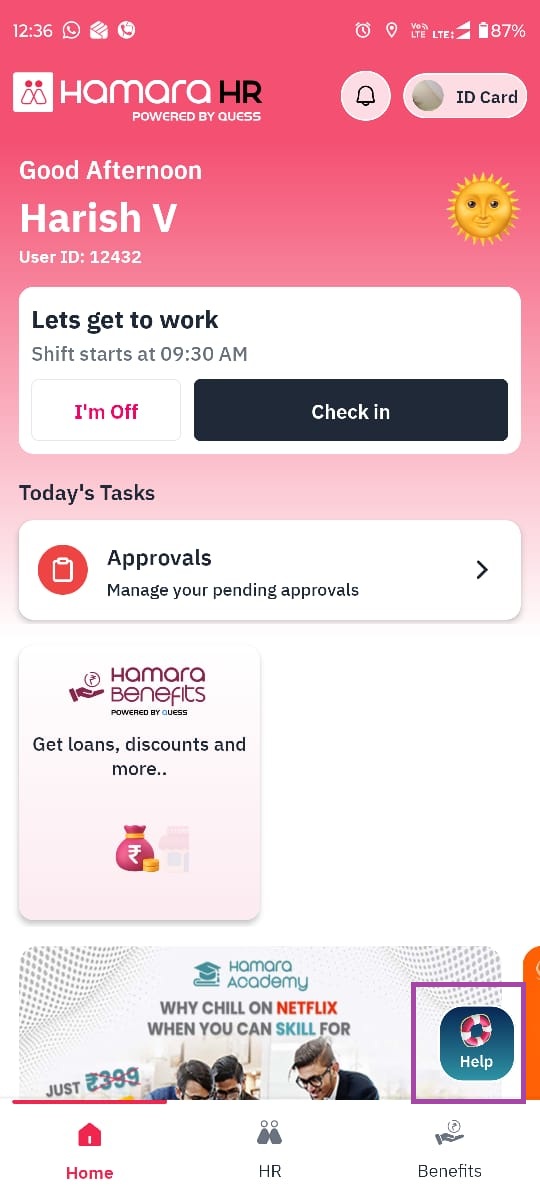
Open the Hamara HR Mobile App
Go to the Home Page
At the bottom of the Home Page, you will see the Help option
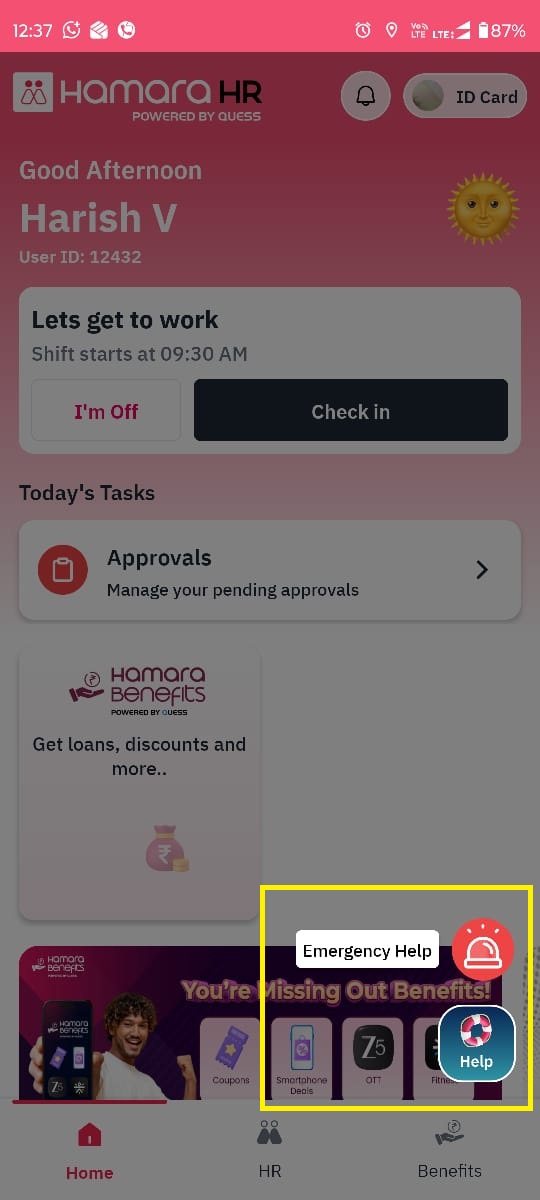
Click on the Help button
It will show the Emergency Help option
Click on Emergency Help
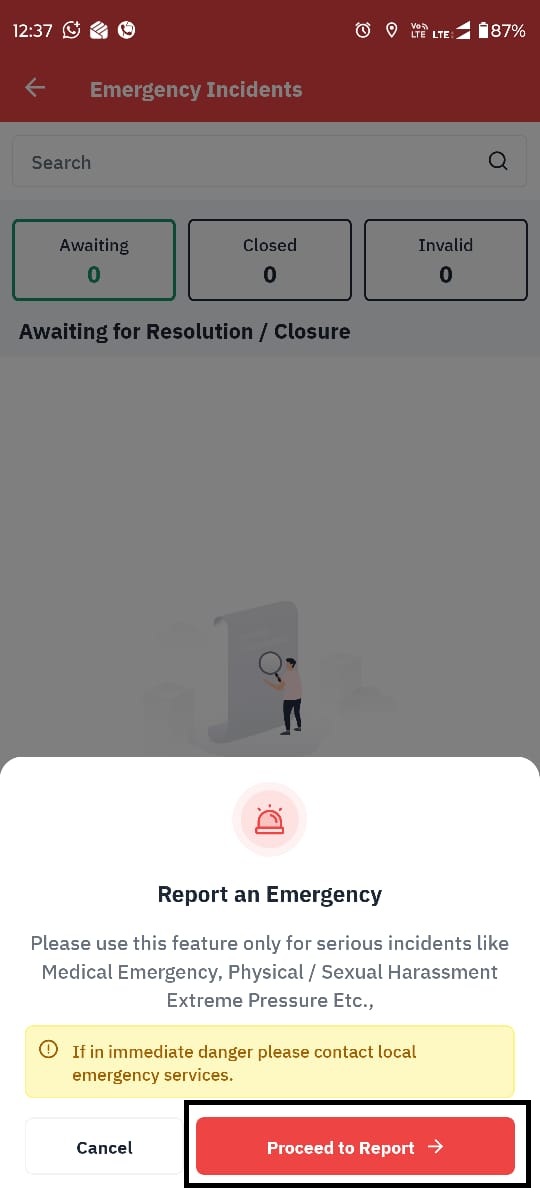
The next page will display Report an Emergency
Click on Proceed to Report
Step 2: Enter Incident Details
After clicking Proceed to Report, it will ask for a few basic details.
The employee needs to fill the following information:
Who is affected – Select the person affected by the incident
Place of incident – Enter the location where the incident occurred
State and City – Select the respective state and city
Type of Incident – Choose the incident type from the dropdown list
Describe the Incident – Provide a brief description explaining what happened
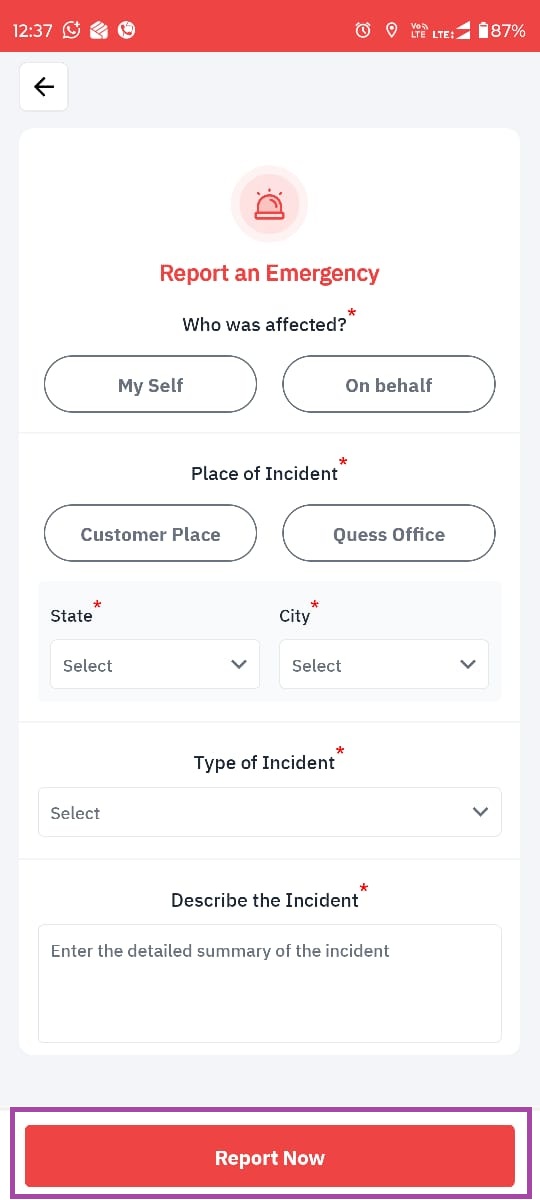
After filling all the required details, click Report Now.
Once submitted, the incident will be automatically routed to the respective PE for further action.
Step 3: View the Status of the Raised Incident
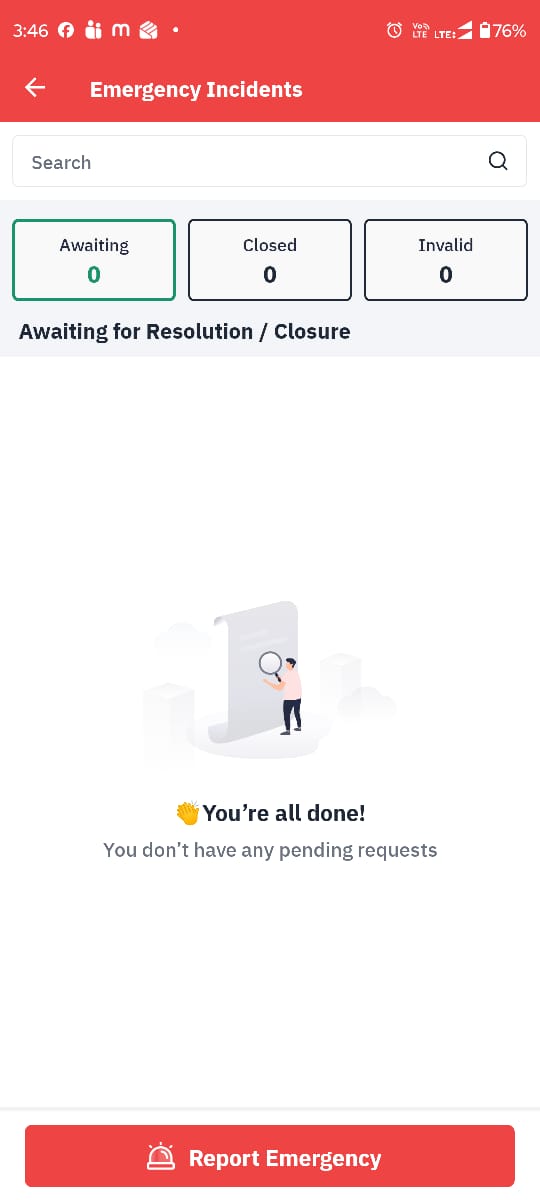
The employee can view the status of the raised incident request from the mobile application.
Navigation Path:
Mobile App → Home Page → Help → Emergency Help
In this Page, the employee can view the current status of the raised request, such as:
- Awaiting – The incident is still pending for review or action
- Closed – The incident has been resolved and closed
- Invalid – The incident request has been marked as invalid
This helps the employee track the progress of the incident raised.
Was this article helpful?
That’s Great!
Thank you for your feedback
Sorry! We couldn't be helpful
Thank you for your feedback
Feedback sent
We appreciate your effort and will try to fix the article