The Hiring module in Hamara HR helps manage the complete recruitment cycle, including Recruitment, Offers, and Onboarding.
Role Group Configuration & Permissions
- The first-level configuration must be enabled in the Role Group.
- If a user is tagged as a Recruiter, the respective person must be assigned the required permissions within the role group.
Navigation:
- Go to: Setup → Permissions → Role Group
Manager Type role group:
- Enable the required permissions under the Manager Type
- tag this role group to the respective person
This ensures that the recruiter has the necessary access to perform actions within the system.
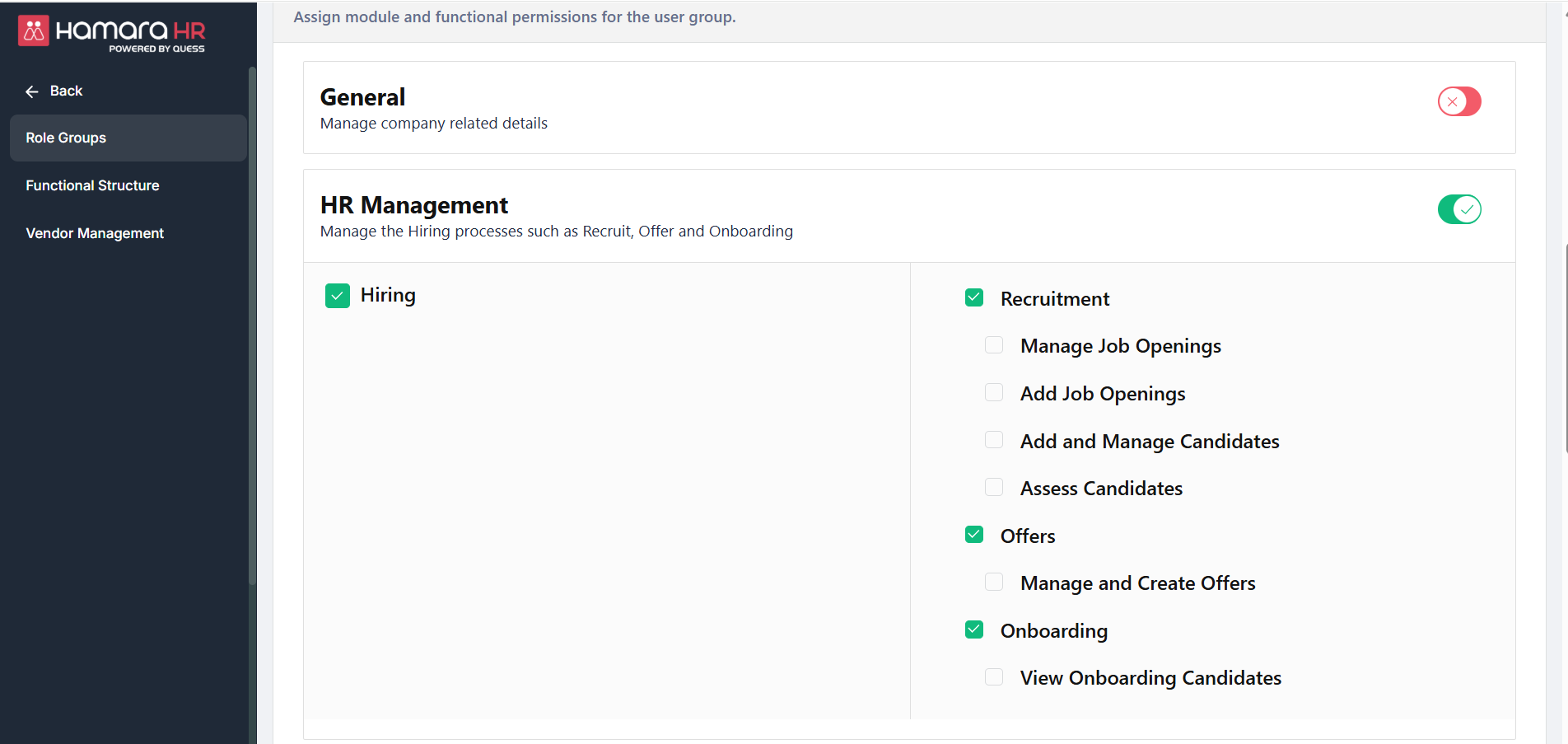
Custom Role Group:
- Enable the required permissions under the Custom Type
- Tag this role group to the respective user
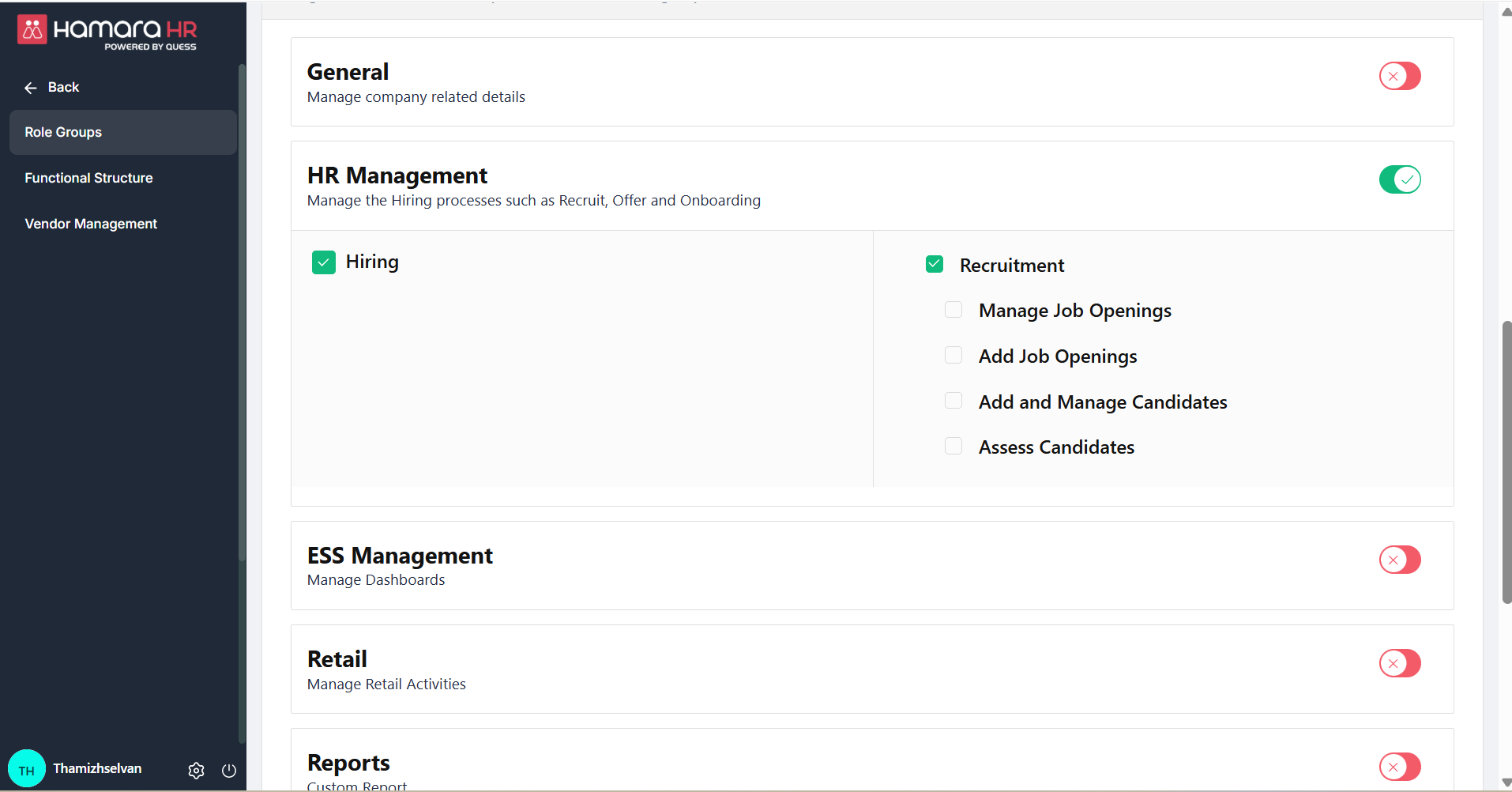
Hiring Module – Job Opening Creation (Hamara HR)
Navigation Path
Customer Admin → Hiring → Recruitment → Job Openings → Add New Job Opening
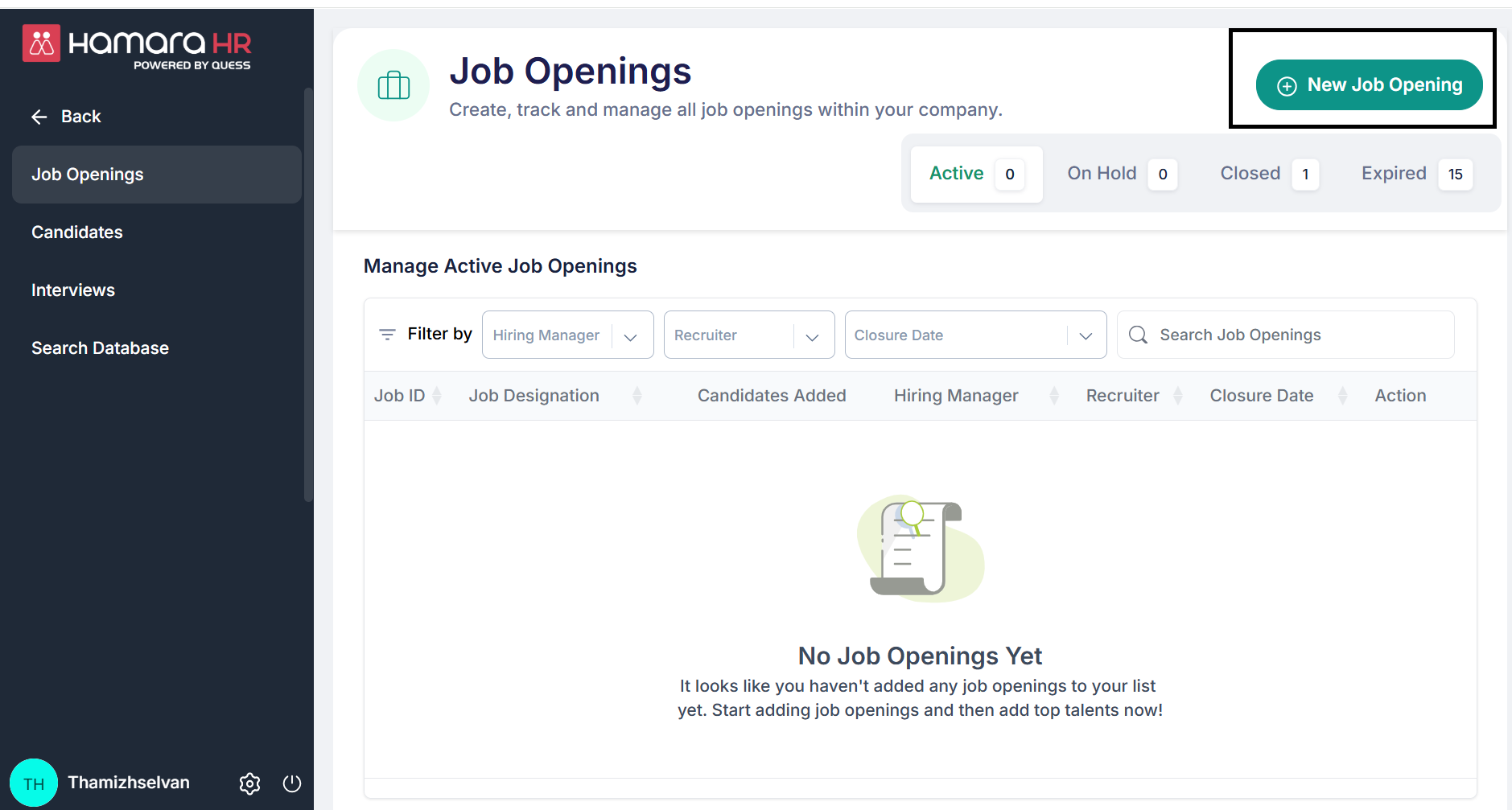
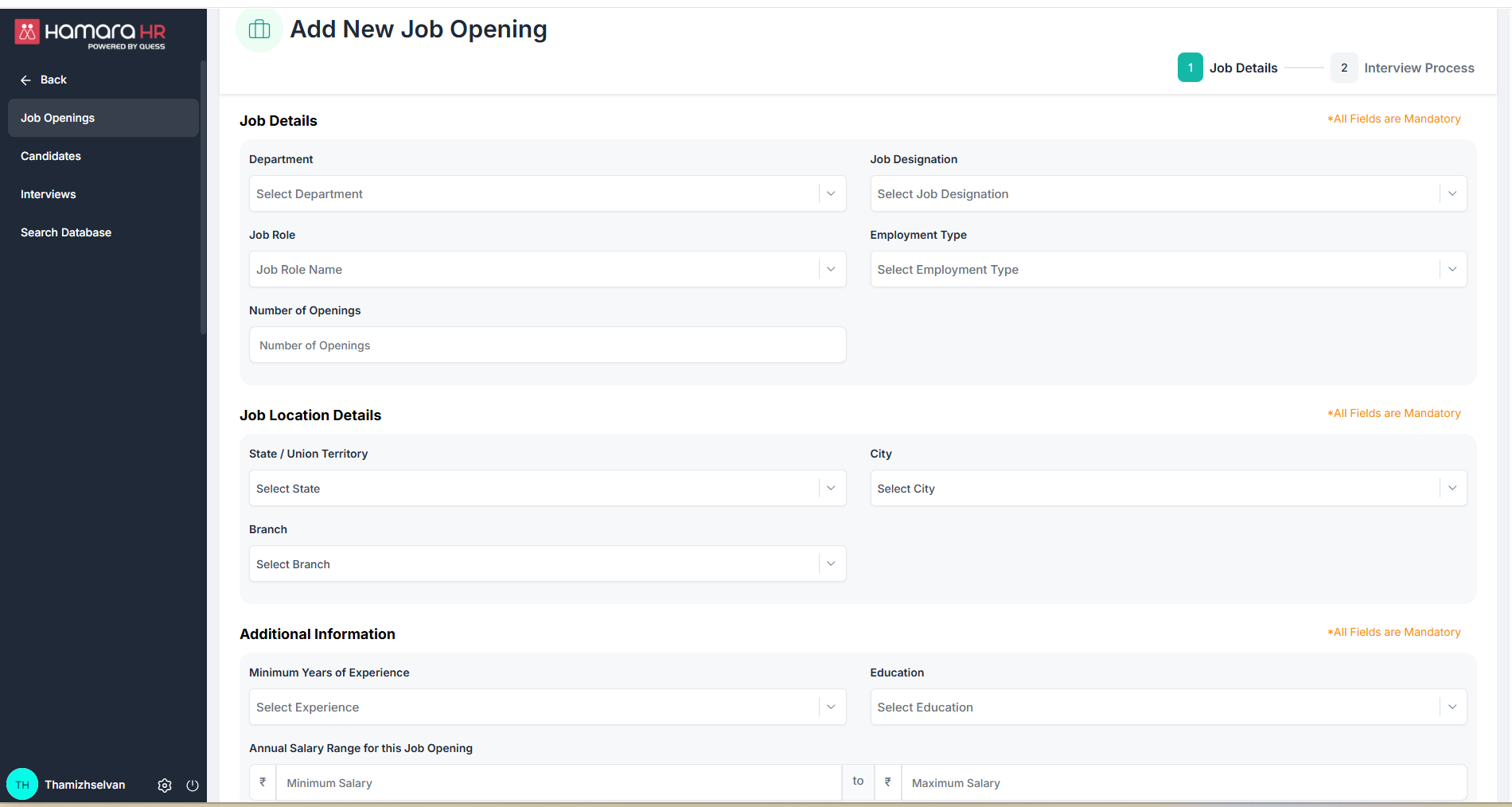
Step 1 Add new job opening
Job Details
Please provide the following details:
- Department: Department for which hiring is being done
- Job Designation: Title of the position
- Job Role: Nature of work
- Employment Type: (e.g., Trainee, Permanent, Contract)
- Number of Openings: Total number of positions available
Job Location Details
Please provide the following information:
- State
- City
- Branch: Specific work location details
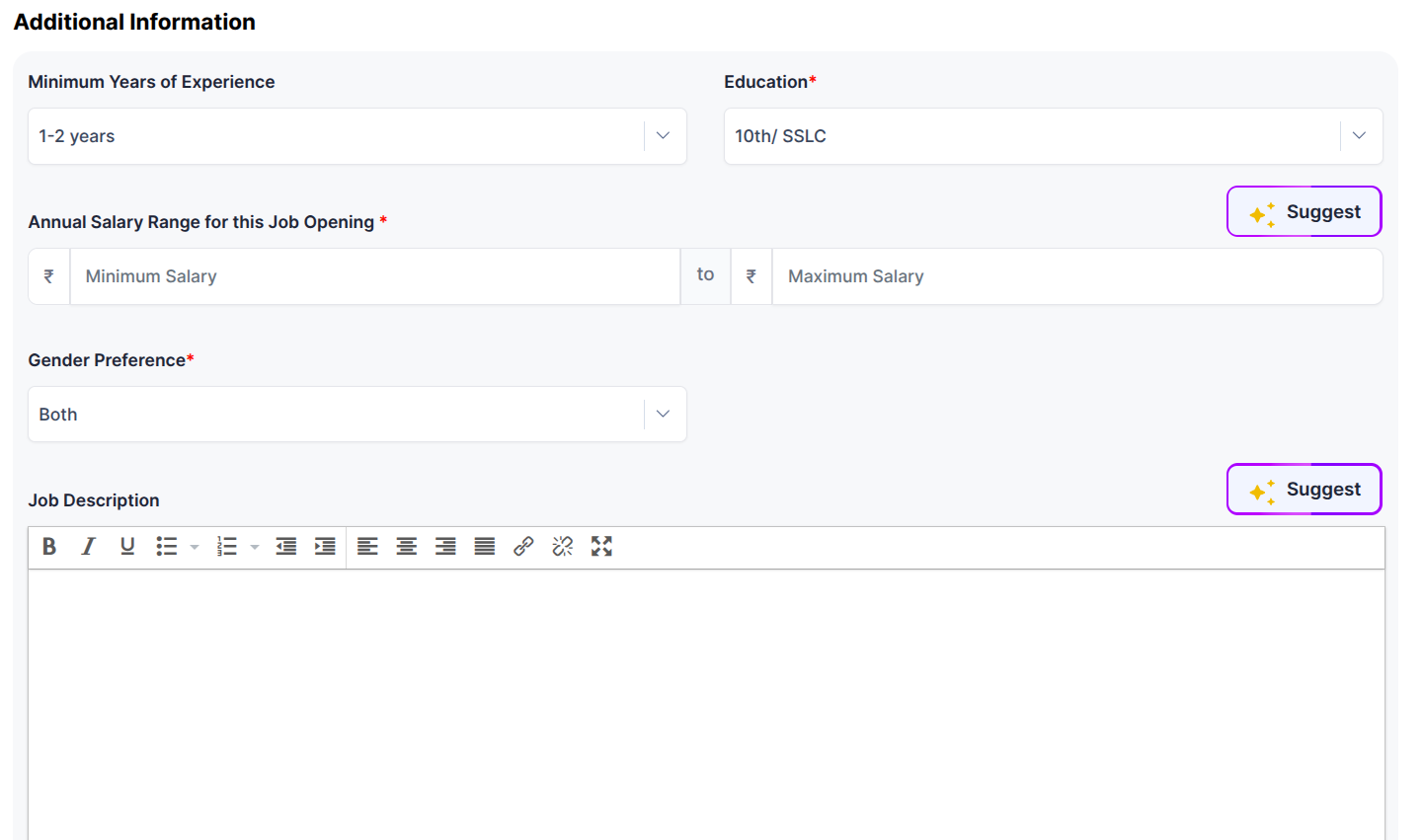
Additional Information
- Minimum Years of Experience
- Education Qualification
- Annual Salary Range: The AI assistant can suggest the minimum and maximum salary range based on the job role and state and city.
- Gender Preference: (if applicable) which gender is suitable for this opening
- Job description: The AI assistant can suggest/describes the responsibilities and tasks associated with the role
Then click on Next
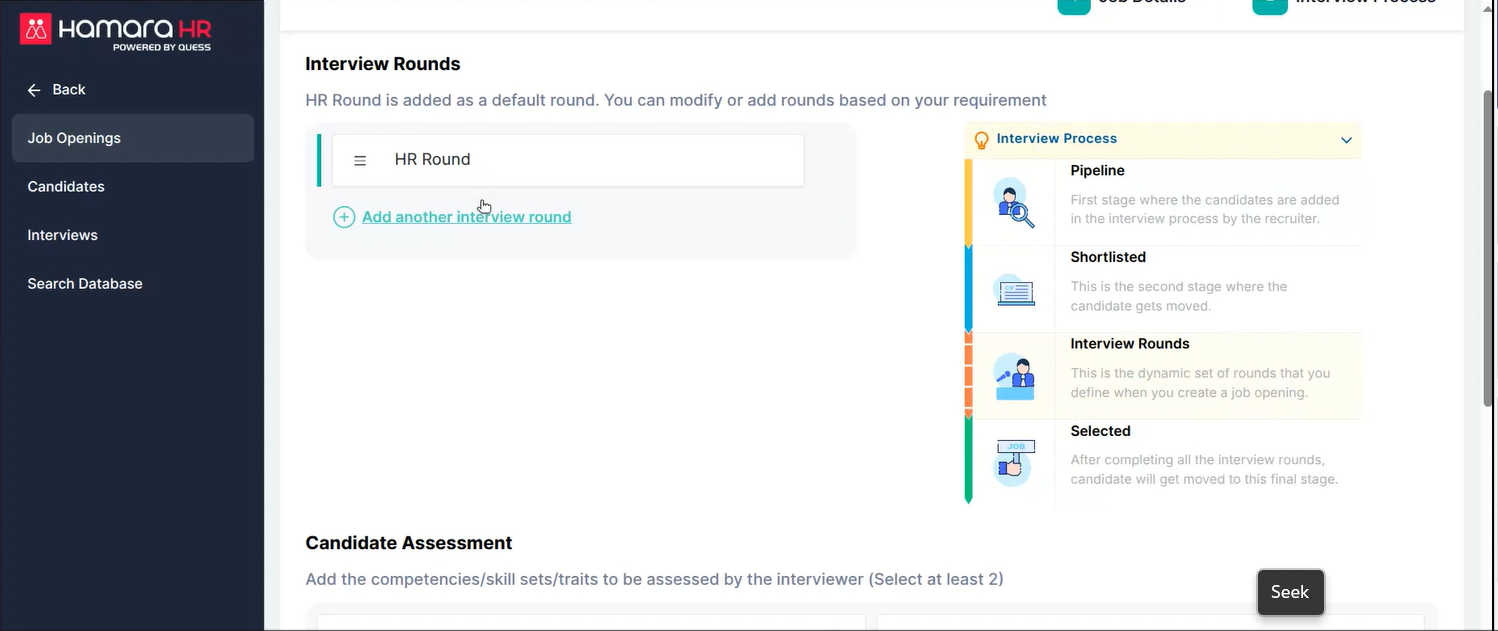
Step 2: Assign Interview Rounds
You can configure the interview rounds by clicking on “Add Another Interview Round.”
- Candidate Assessment: Define the basic skills required from candidates (e.g., communication, teamwork, leadership, technical skills).
- Recruiter Details:
- Choose whether the interview will be conducted by yourself or others.
- If selecting others, choose the recruiter’s name.
- Expected Date of Closure: Set the job expiry date.
Once all details are configured moving on to next step
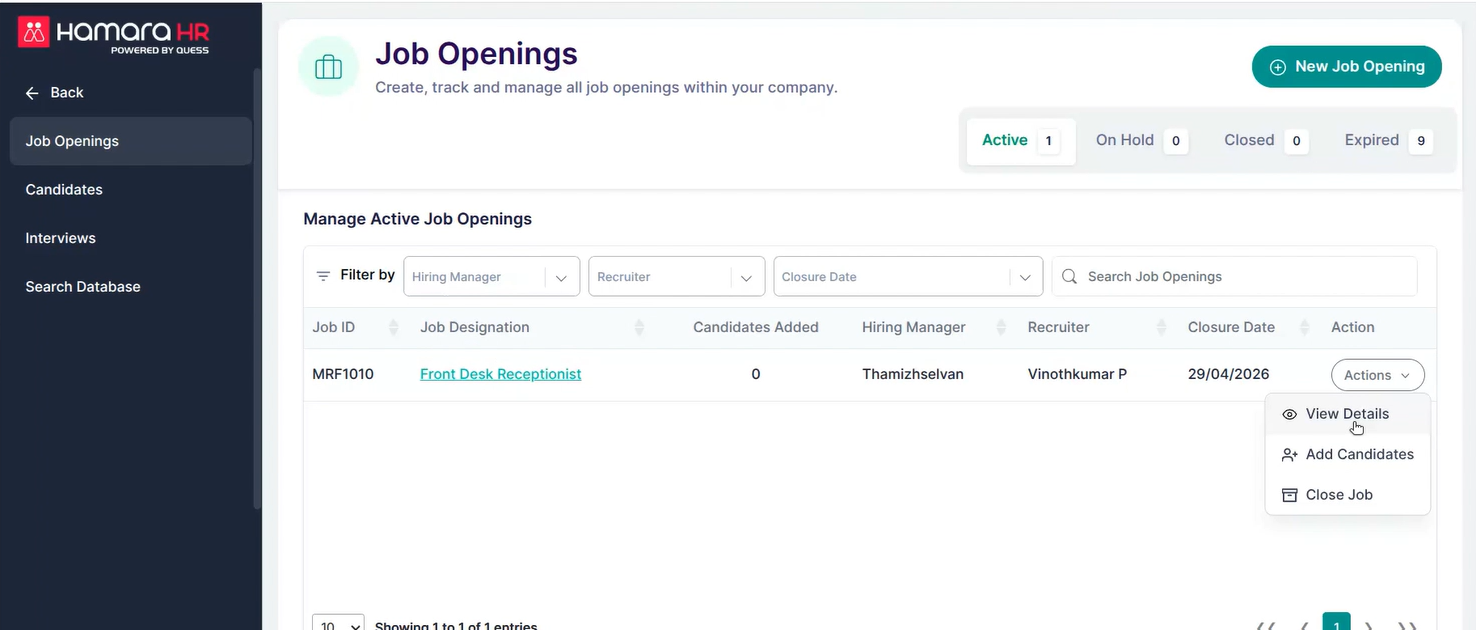 Step 3: Job View Page
- Click on Action → View Details to access the job details page.
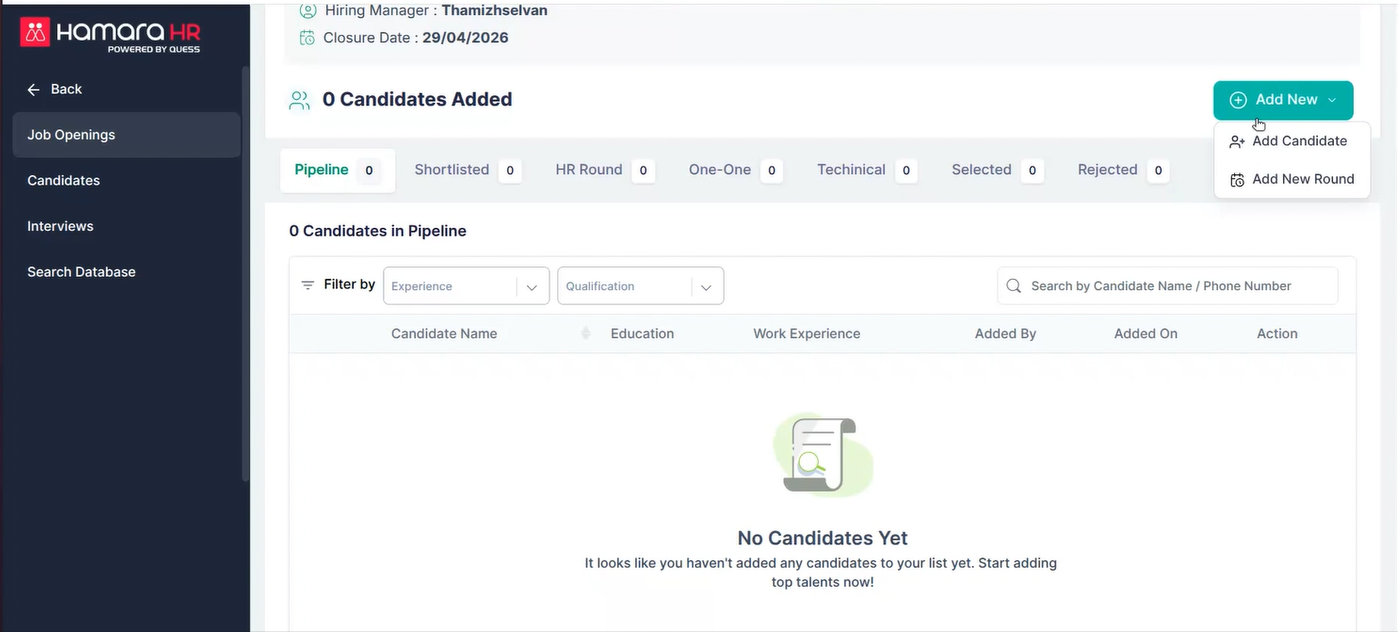
Add Candidate / Add New Round
- Click on Add New → Add Candidate / Add New Round
Add Candidate:
- Candidates can be added to the job by entering their basic details and upload the CV
Add New Round:
- Additional interview rounds can be scheduled if required.
Step 4: Candidate Pipeline & Interview Scheduling
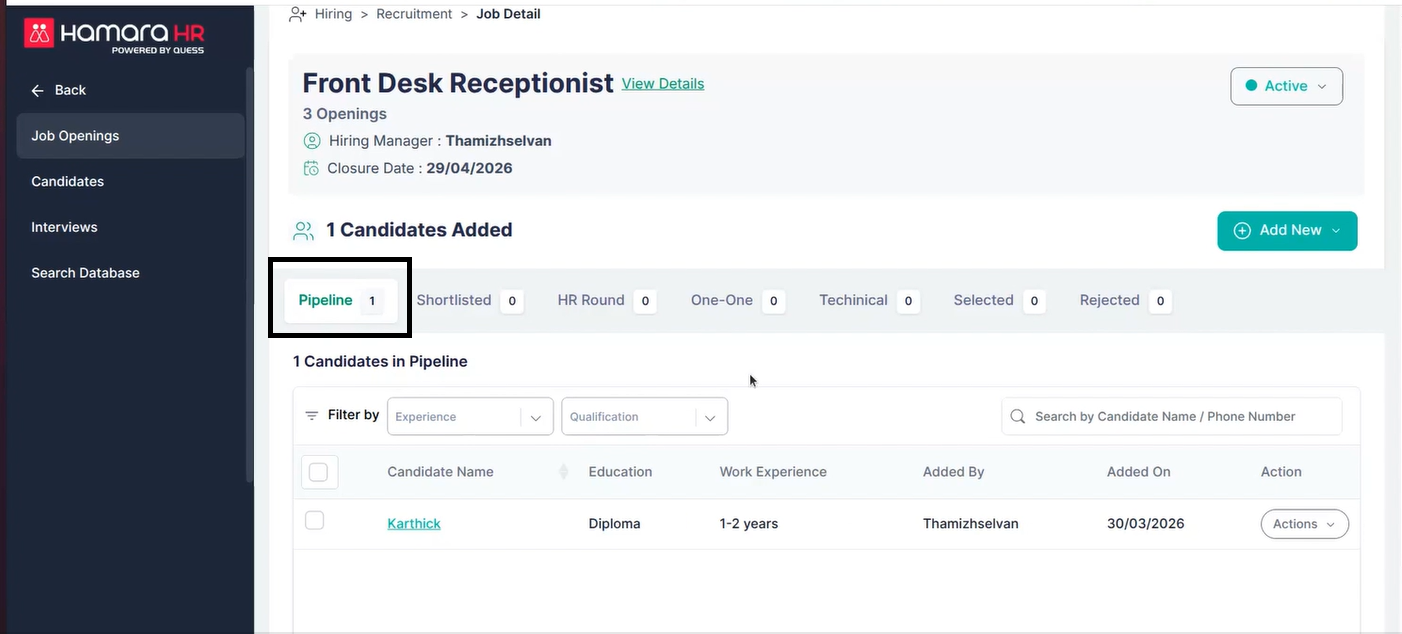
Once a candidate is added to the job, they will be listed in the Pipeline.
- If required, the candidate can be moved to the next stage.
- If not suitable, the candidate can be rejected.
Candidate Actions
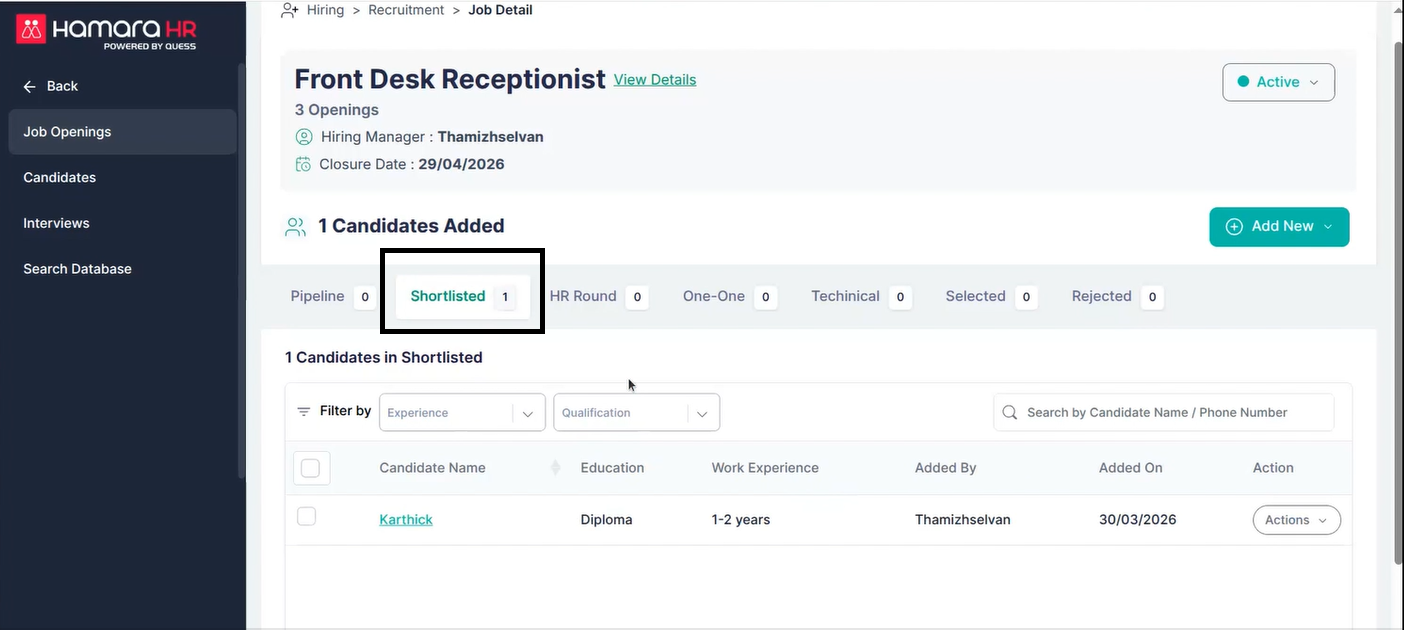
- Go to Action → Reject / Shortlist the Candidate
Shortlisting:
- If the candidate is shortlisted, they will be moved from the Pipeline to the Shortlisted stage.
Step 5: Schedule Interview Round
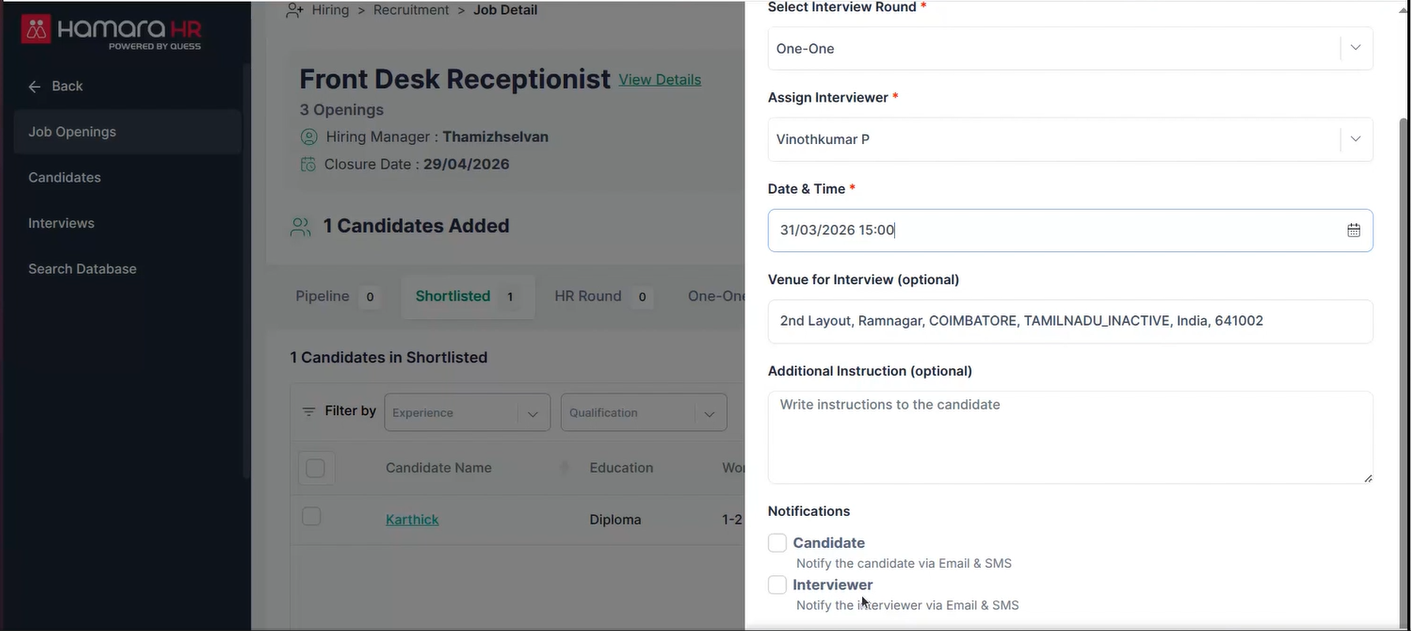
- Go to Action → Schedule the Round
Fill in the following details:
- Select Round: Choose the interview level (1st round, 2nd round, etc.)
- Assign Recruiter: Select the interviewer
- Interview Date & Time
- Venue
Notifications:
- If both candidate and interviewer are selected, both will receive SMS and Email notifications with interview details.
- Click on “Schedule the Round” to confirm
.
Step 6: Reschedule Interview Round
To reschedule an interview round:
- Click on Action → Reschedule
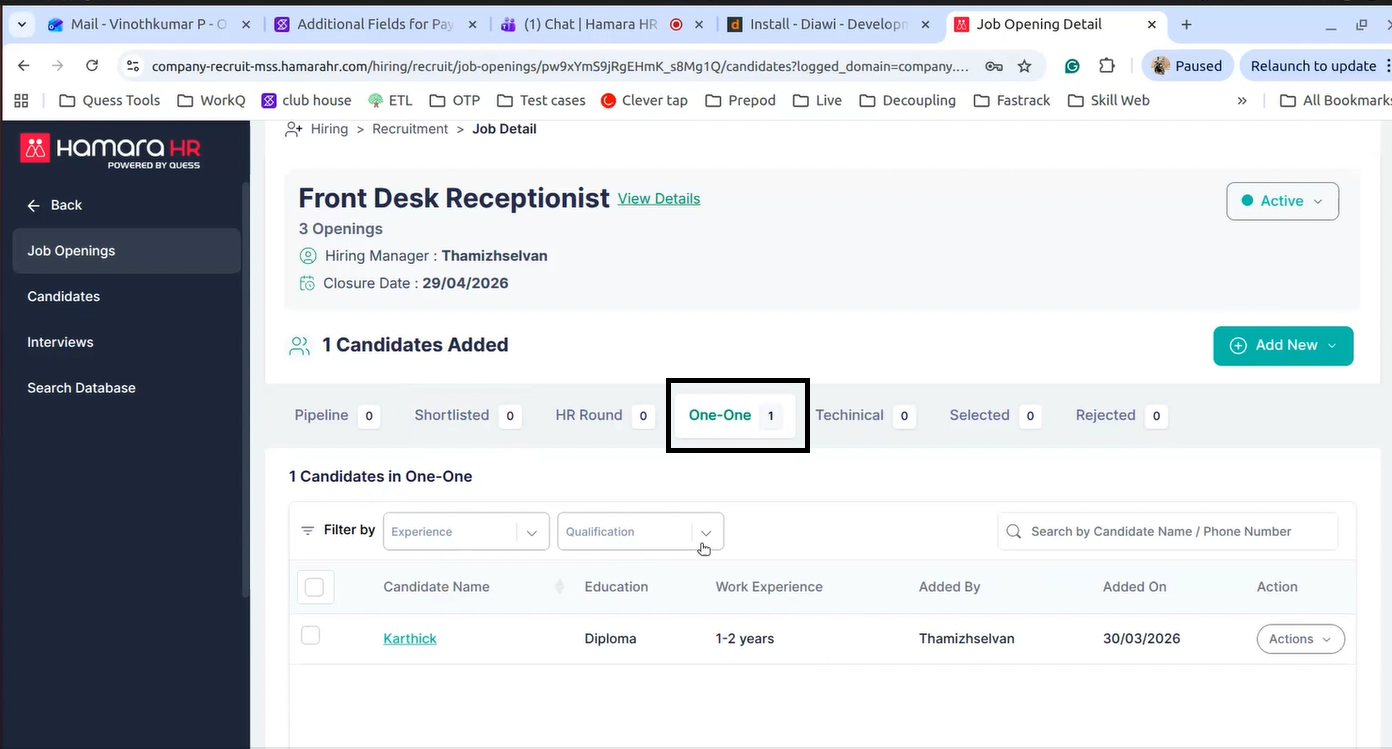
In the reschedule option, you can modify the interview round details. the candidate will be moved to the respective interview level (e.g., second-level interview round).
While rescheduling, update the required details as shown in the first screenshot of Step 5.
Ensure that the correct interview round, recruiter details, date, and time are updated accordingly. Based on these changes, the candidate will be moved to the respective interview round.
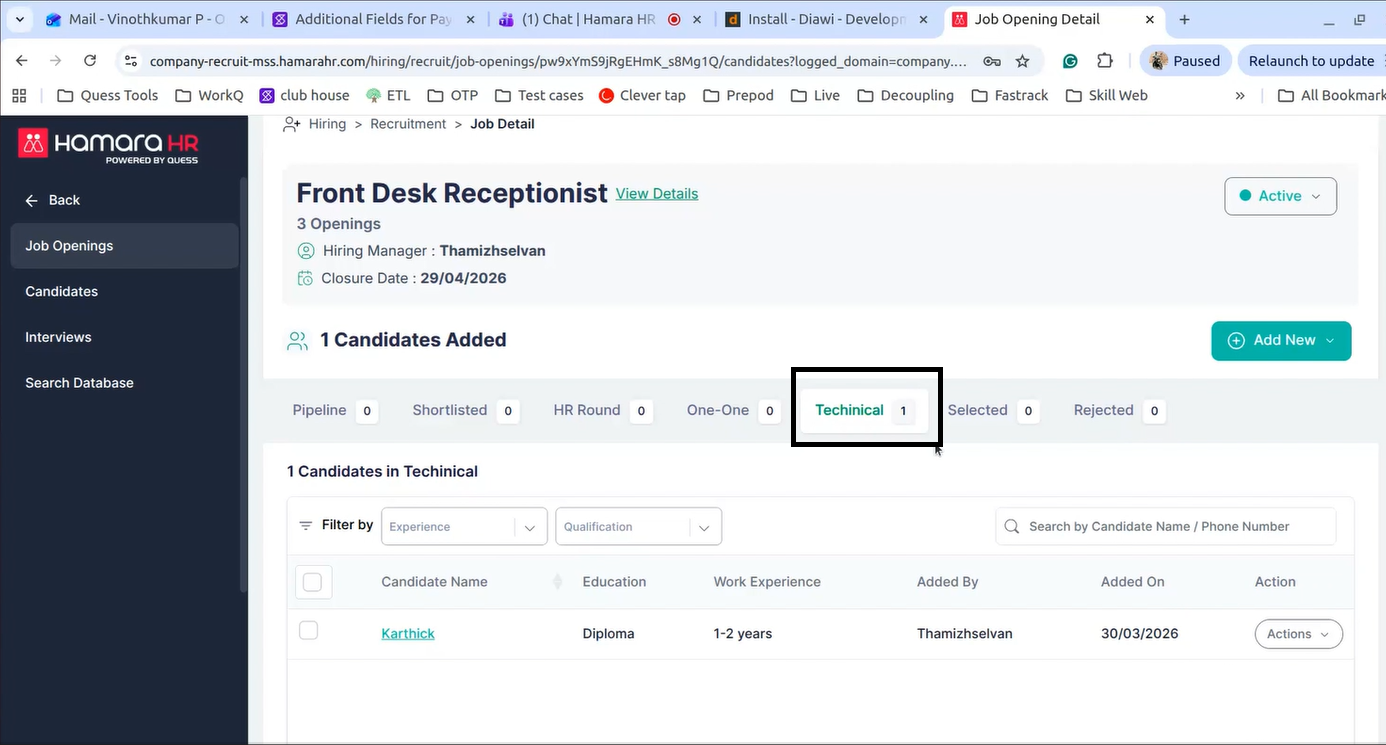
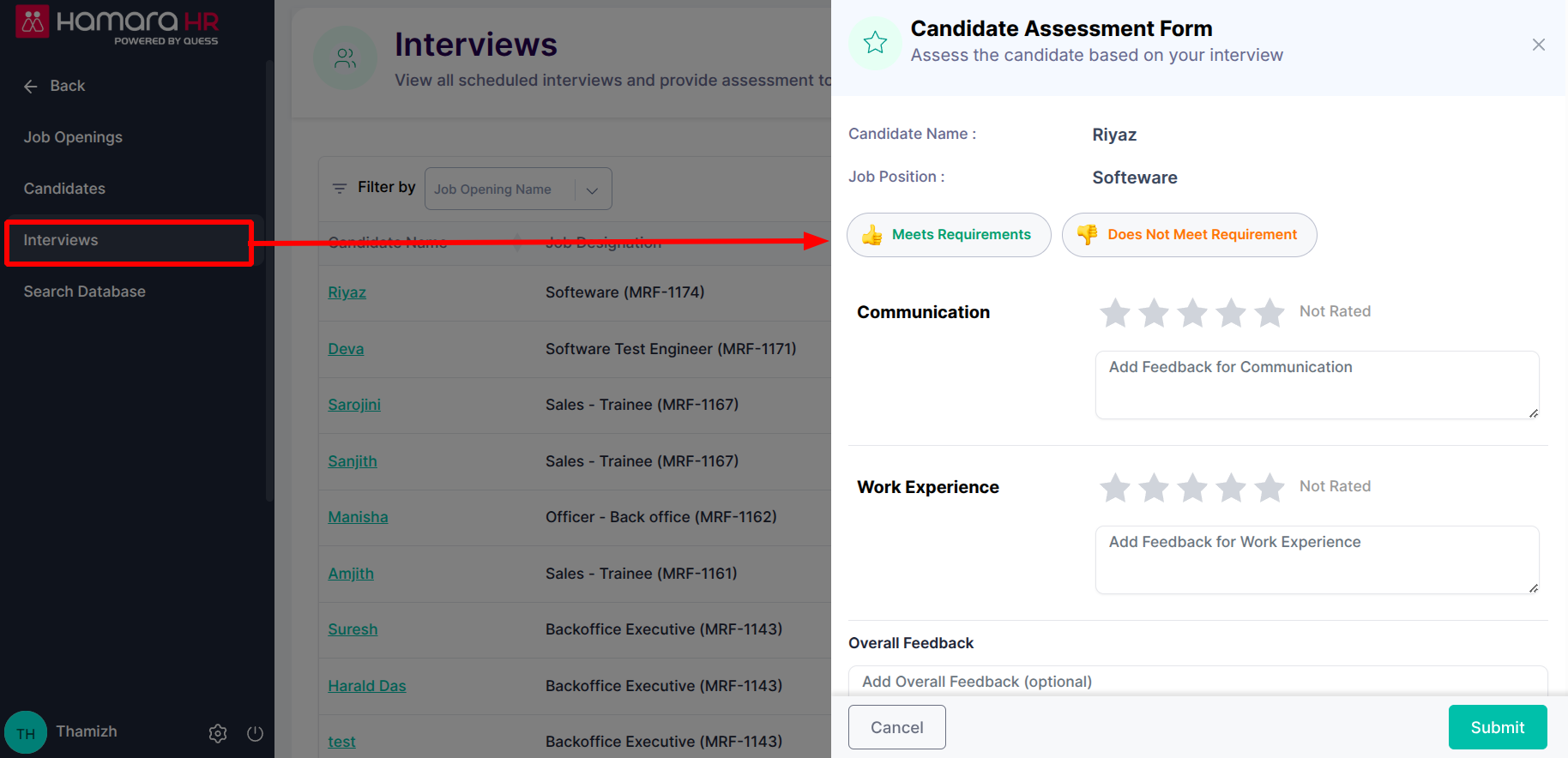
Step 7: Interviews
In the Interviews tab, you can access and view the candidates.
- Click on Action → View Candidates / Access Candidates
This will allow you to view and access candidate details within the interview process.
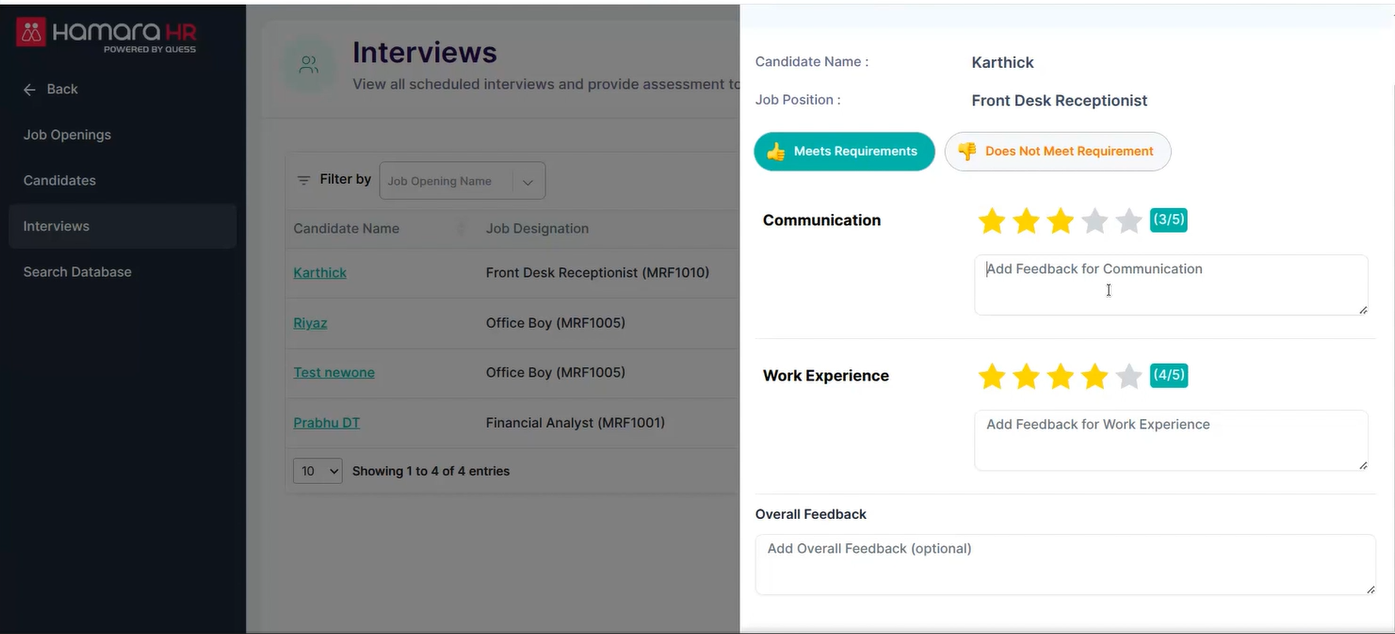
Step 8: Candidate Feedback
To view the feedback for a candidate, follow the below steps:
- Navigate to Job Openings → Action → View Details
- Move to the respective interview scheduled job
- Click on Action → View Feedback
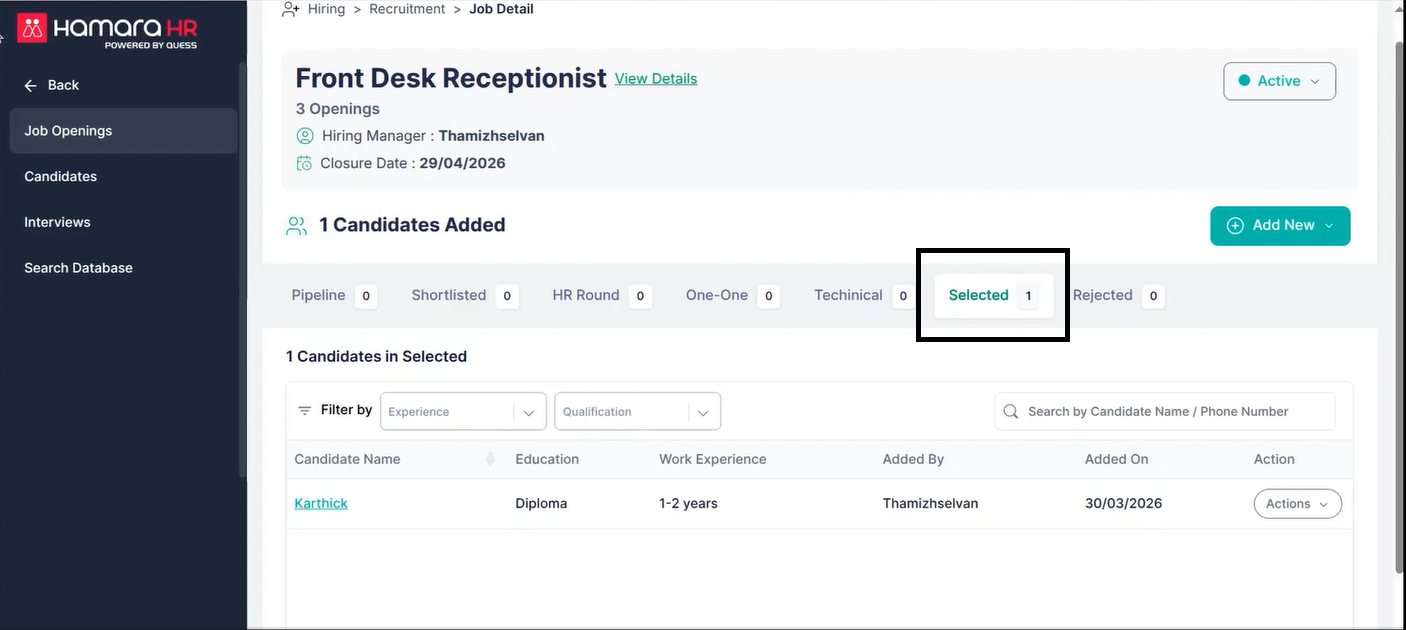
Step 9: Move Candidate to Selected
If the candidate meets the required criteria, they can be moved to the Selected tab.
- Click on Action → Move to Selected
Step 10: Offer Module
Once the recruitment process is completed, the candidate will be listed in the Offer Module.
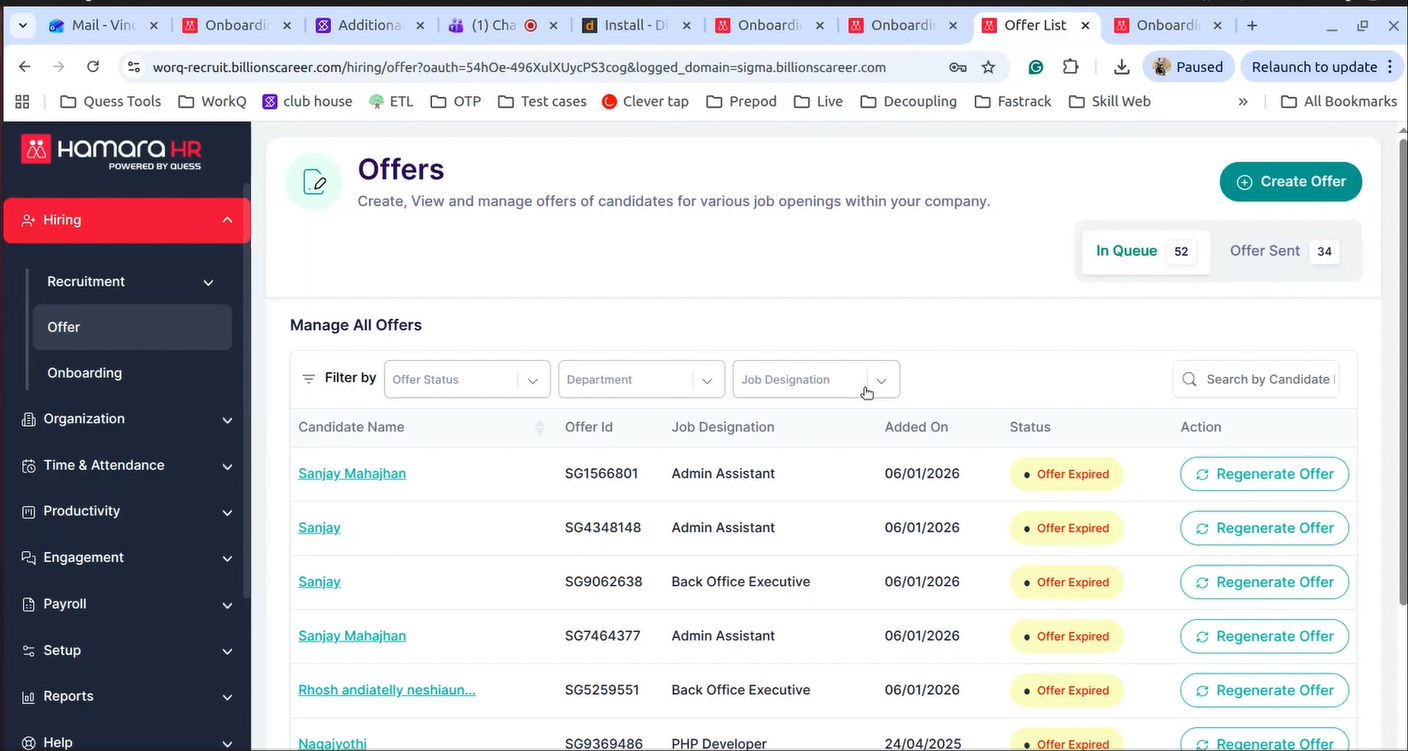
- Navigate to: Hiring → Offer → Create Offer
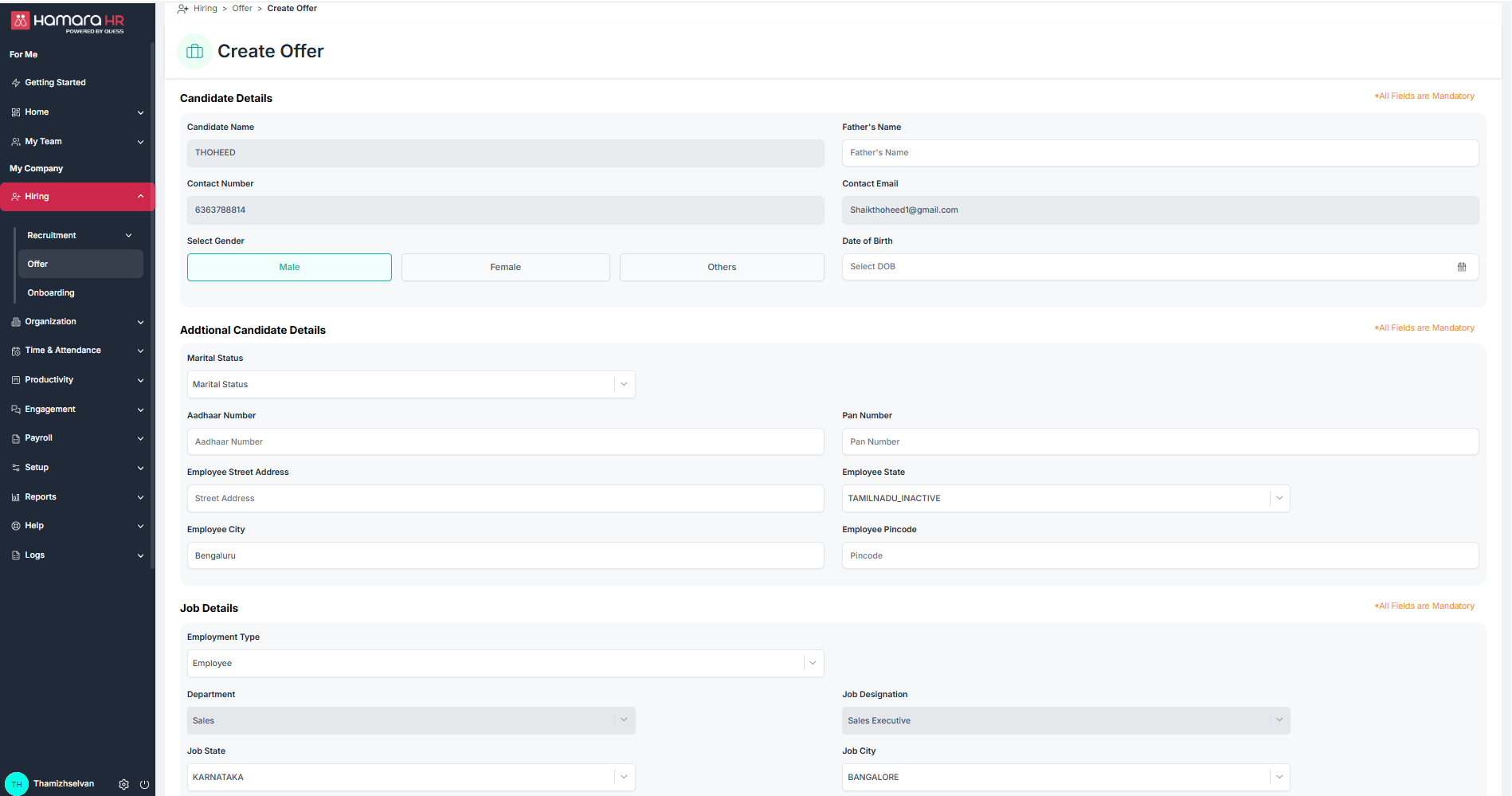
From here, you can proceed with creating and sharing the offer for the selected candidate.
Step 11: Add or Tag Existing Candidates
You can also add candidates directly at this stage.
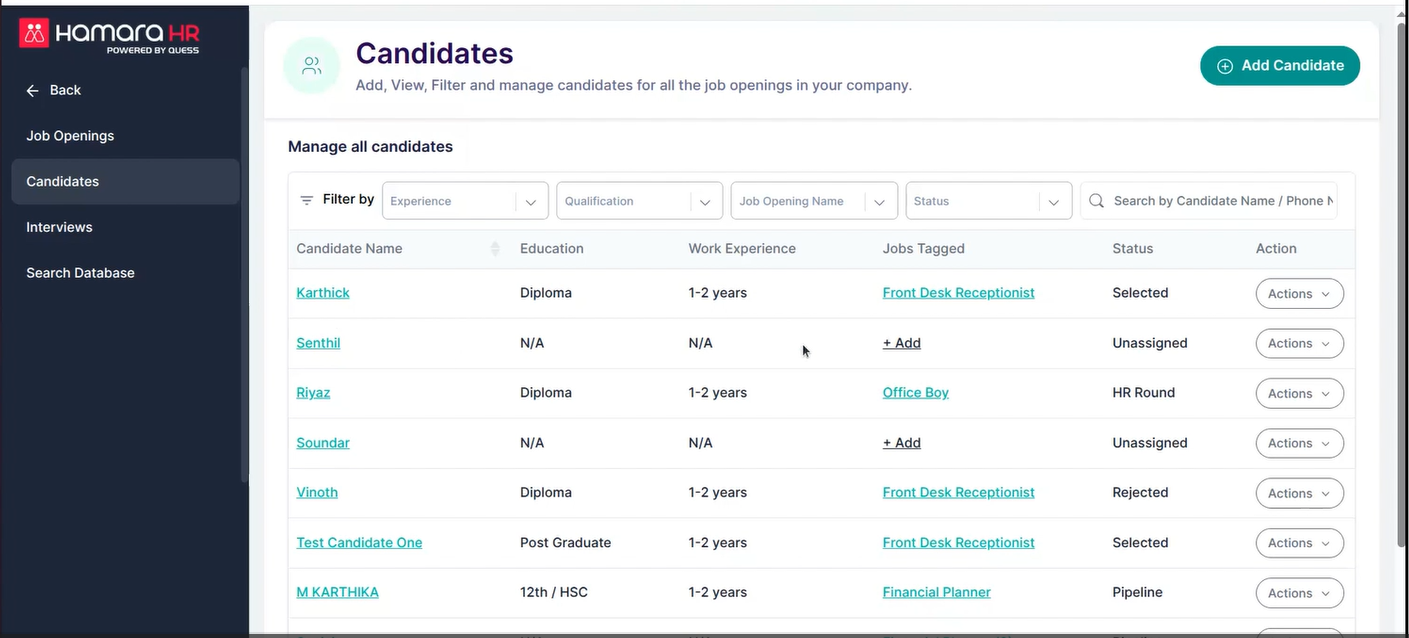
- If the candidate is new, you can add them directly.
- If the candidate already exists, you can tag them to the respective job opening.
By clicking on “+ Add”, a pop-up will appear.
- Fill in the required job details in the pop-up.
- Ensure the correct job is selected so that the candidate is mapped to the appropriate job opening.
- Click on “Add to Job Opening”
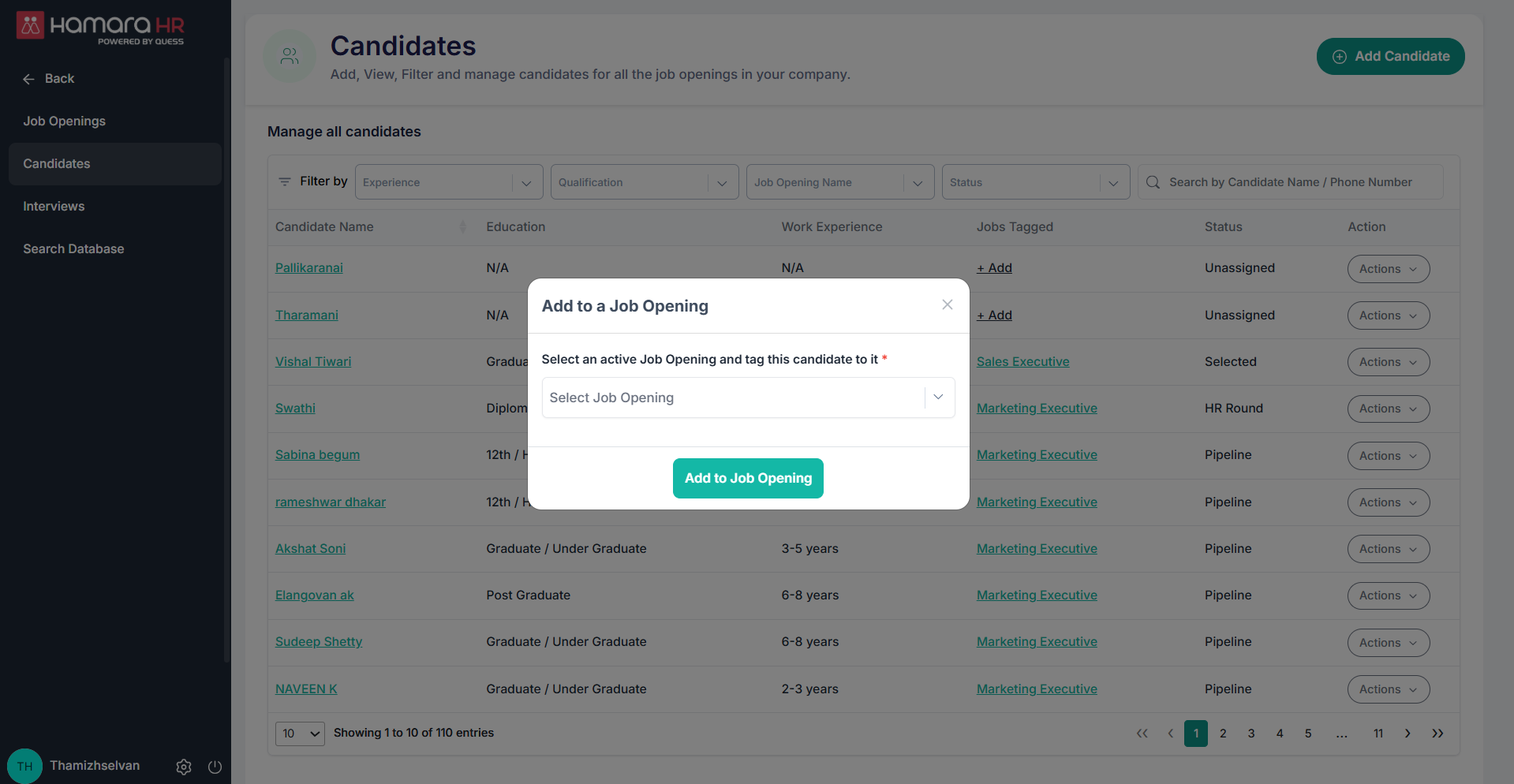
Once an existing candidate is tagged to a job, they will be listed under that job opening under the Pipeline in job opening module
Step 12: Onboarding
Navigate to: Hiring → Onboarding → Bulk Onboarding
Bulk Onboarding Process
- You can onboard new employees or existing employees.
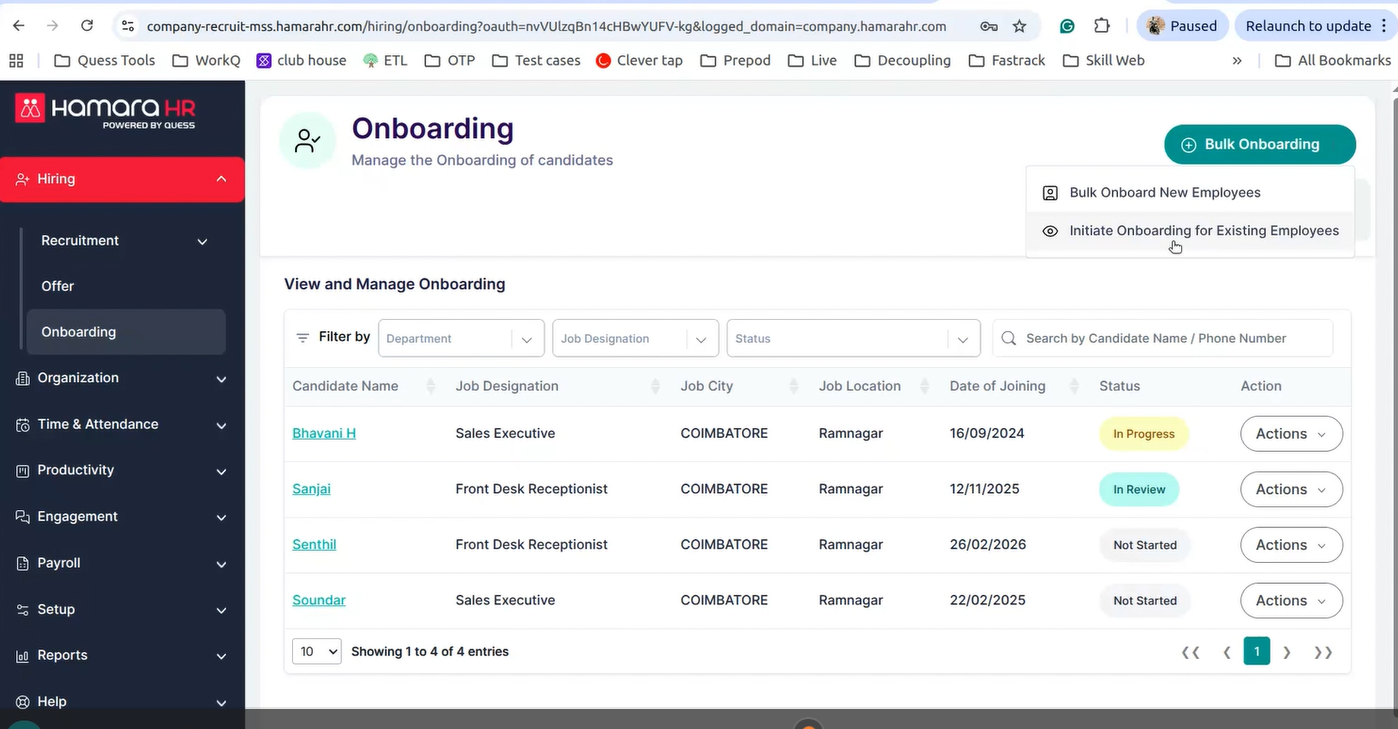
- If you select New Employees, the users will be created in the portal and will also be listed under the Onboarding section.
- Download the template, fill in the required fields, and upload the file.
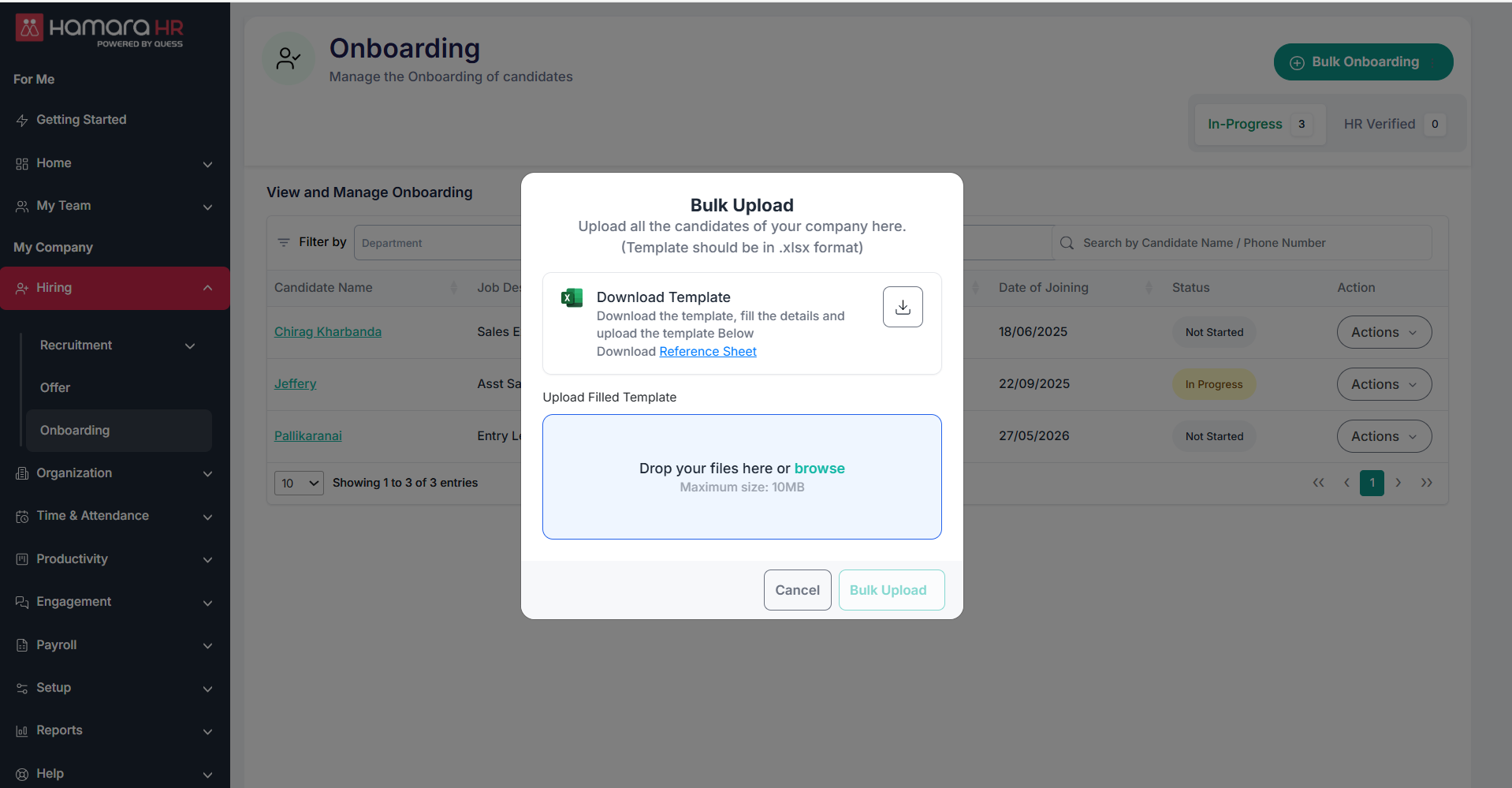
- Once the file is successfully uploaded, onboarding links will be generated and shared with the users.
Bulk Upload: View Upload Logs
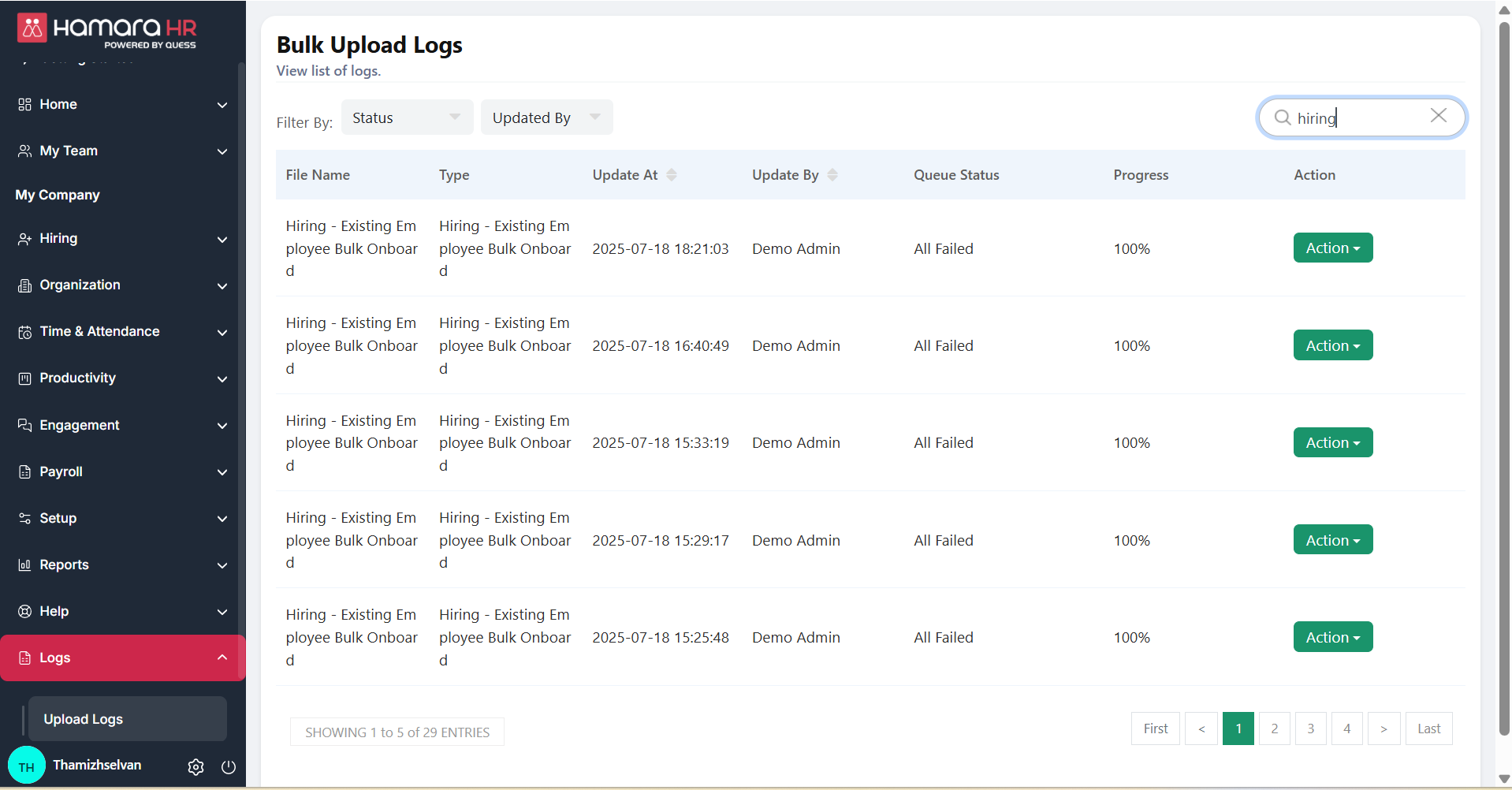
You can track the status of bulk uploads (whether successful or failed) using the upload logs.
- Navigate to: Logs → Upload Logs
This section will display the upload status, including success and failure details for each file.
Note: If the upload fails, you can download the failure file to identify the errors.
- Navigate to: Logs →Upload Logs → Action → Failure File
This file will contain details of the records that failed along with the reasons, helping you correct and re-upload the data.
Notifications:
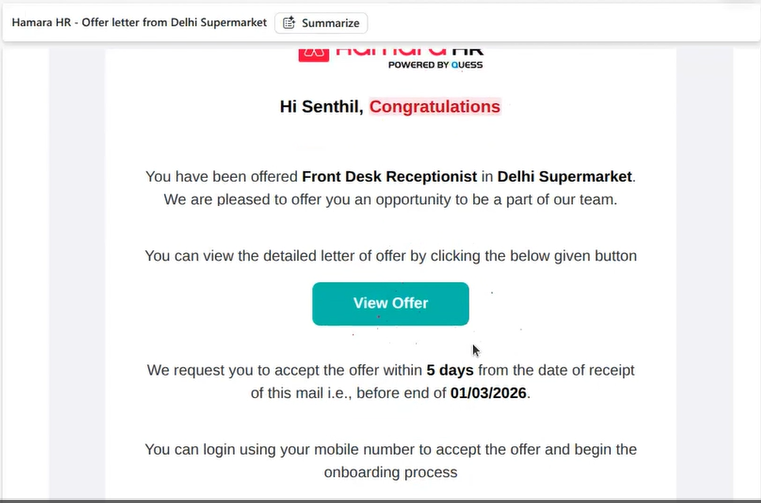
- Users will receive the onboarding link via SMS and Email.
- By clicking on “View Offer”, users can proceed with onboarding.
On-Behalf Onboarding
- Navigate to: Onboarding → Search for the Candidate → Action → On-Behalf Onboarding
- Admins can complete onboarding on behalf of the candidate.
View Uploaded Documents
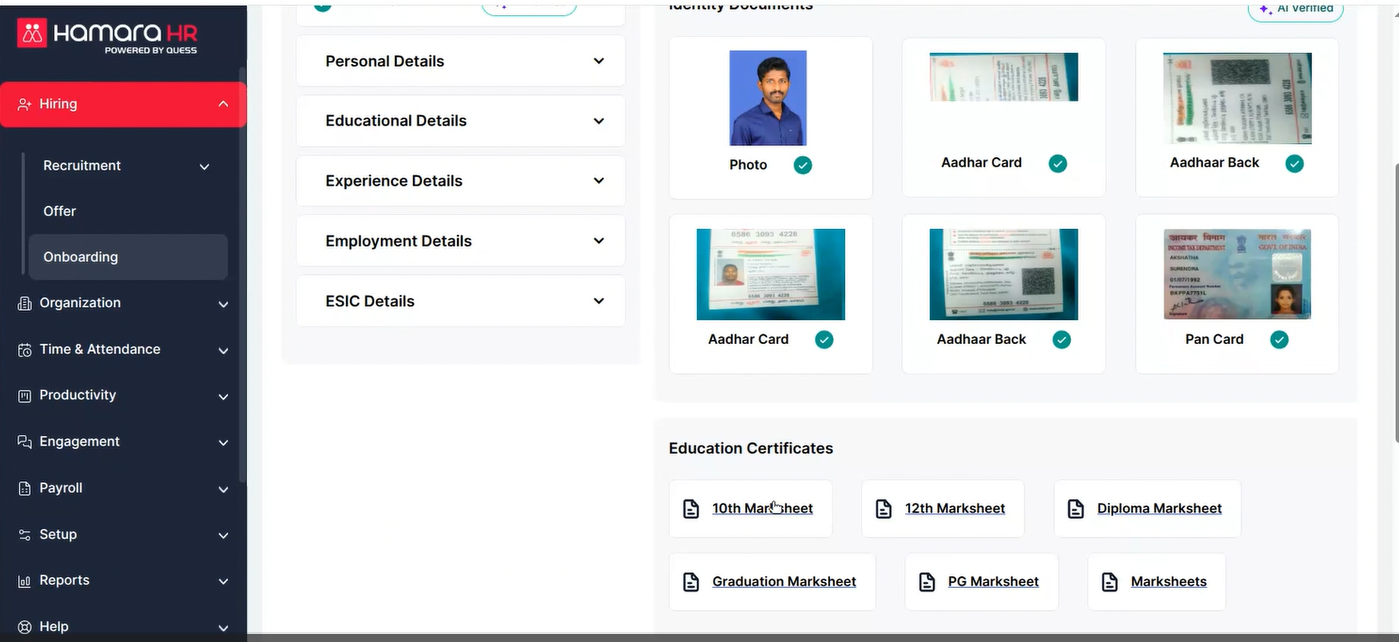
- Navigate to: Onboarding → Search for the Candidate → Action → View Documents
- Admins can view all documents uploaded by the candidate during onboarding.
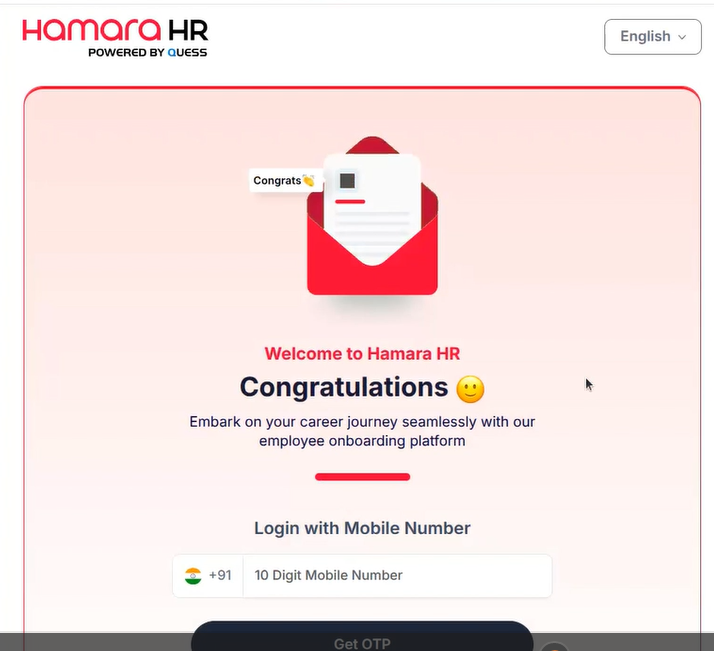
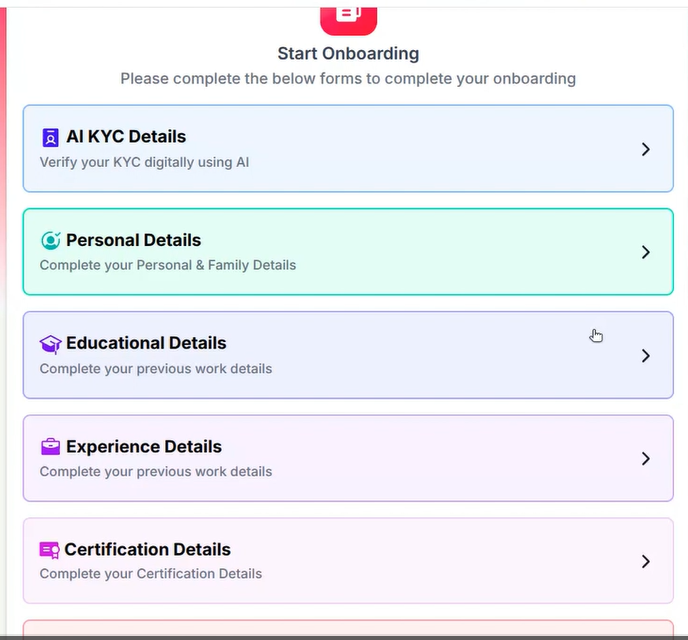
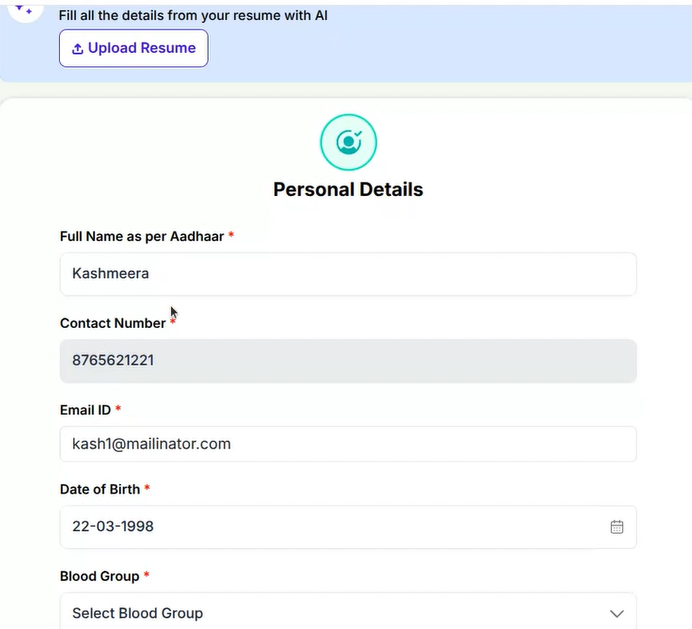
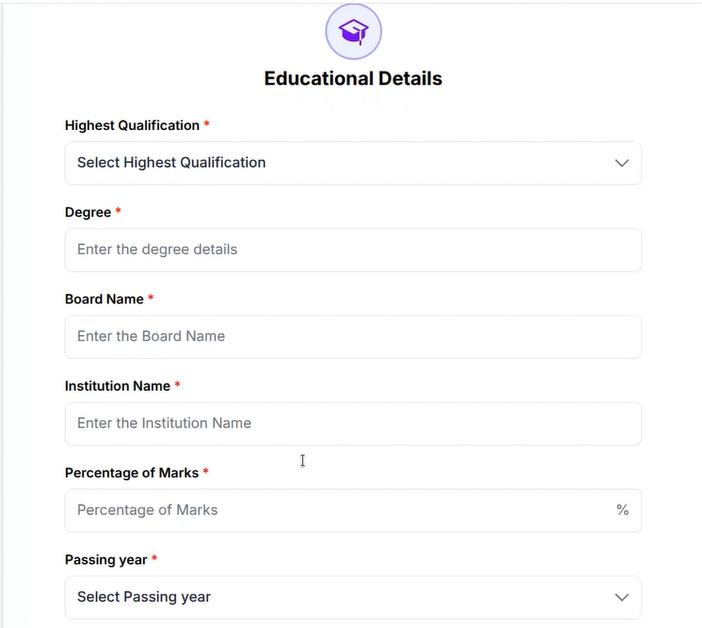
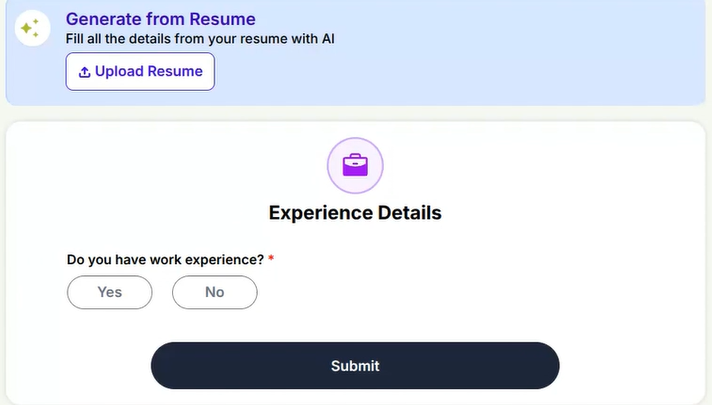
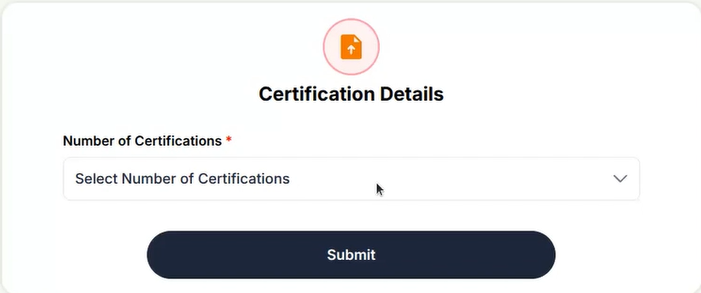
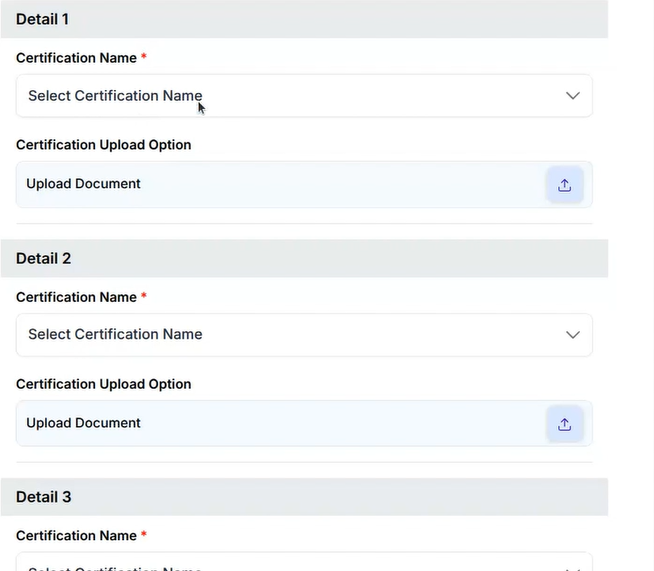
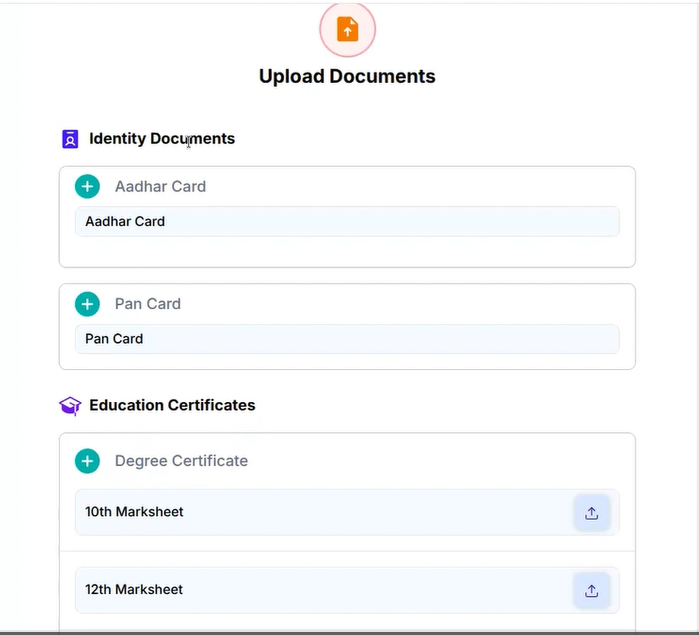
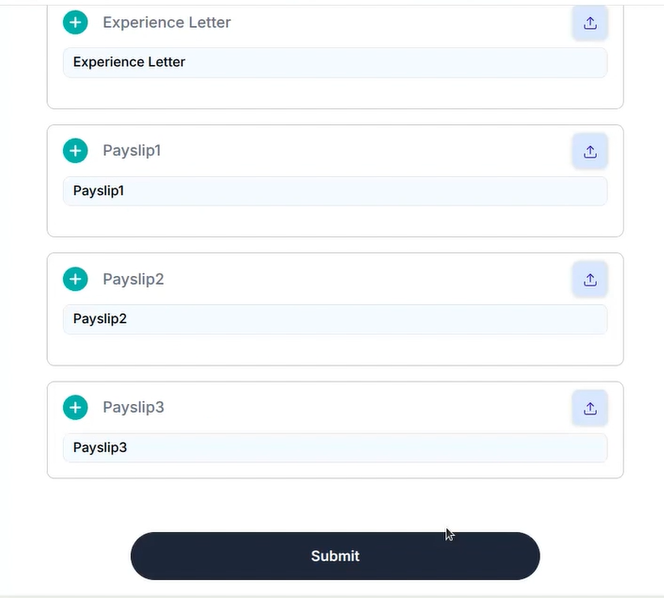
Below are the screenshots demonstrating how employees can upload documents and how admins can view them.
Step 13: Admin Validation & Resubmission of Documents
Admins can view the uploaded documents in this section.
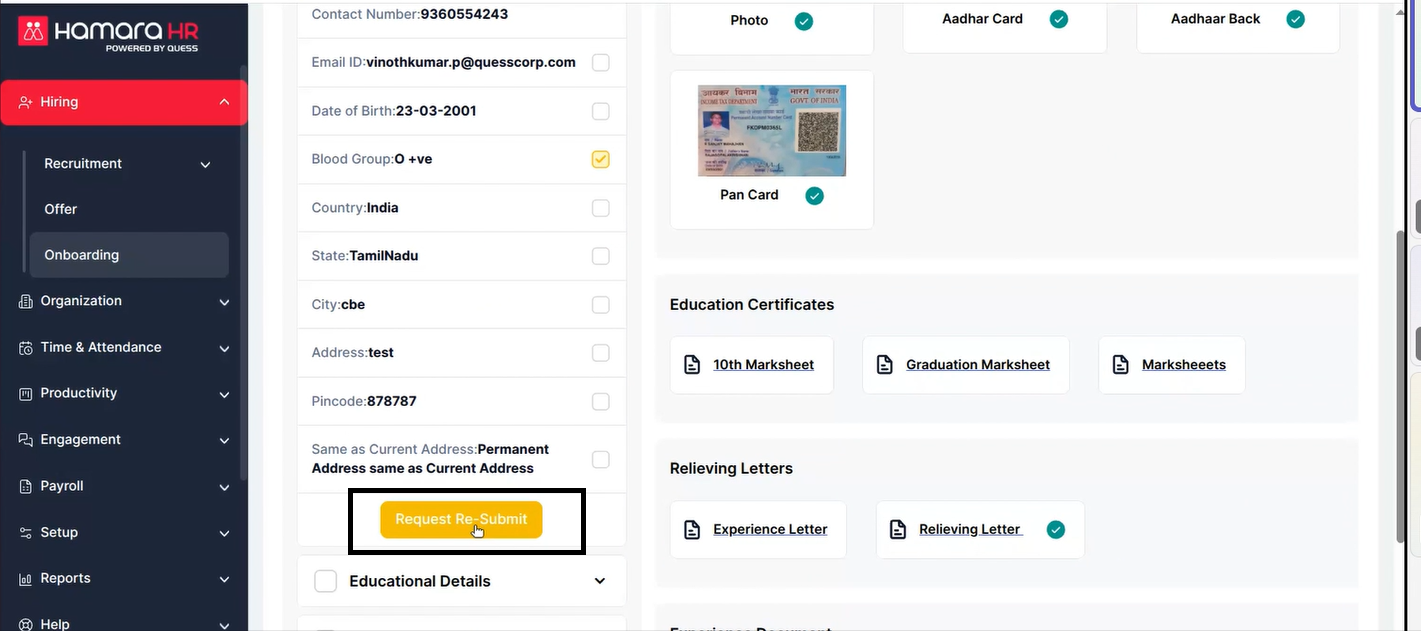
- Admins can review and validate each uploaded document.
- If any document is unclear or incorrect, the admin can request the candidate to resubmit by clicking on the “Request to Resubmit” option (as shown in the second screenshot).
Once a resubmission is requested:
- The candidate will need to update and resubmit the form again with the correct documents.
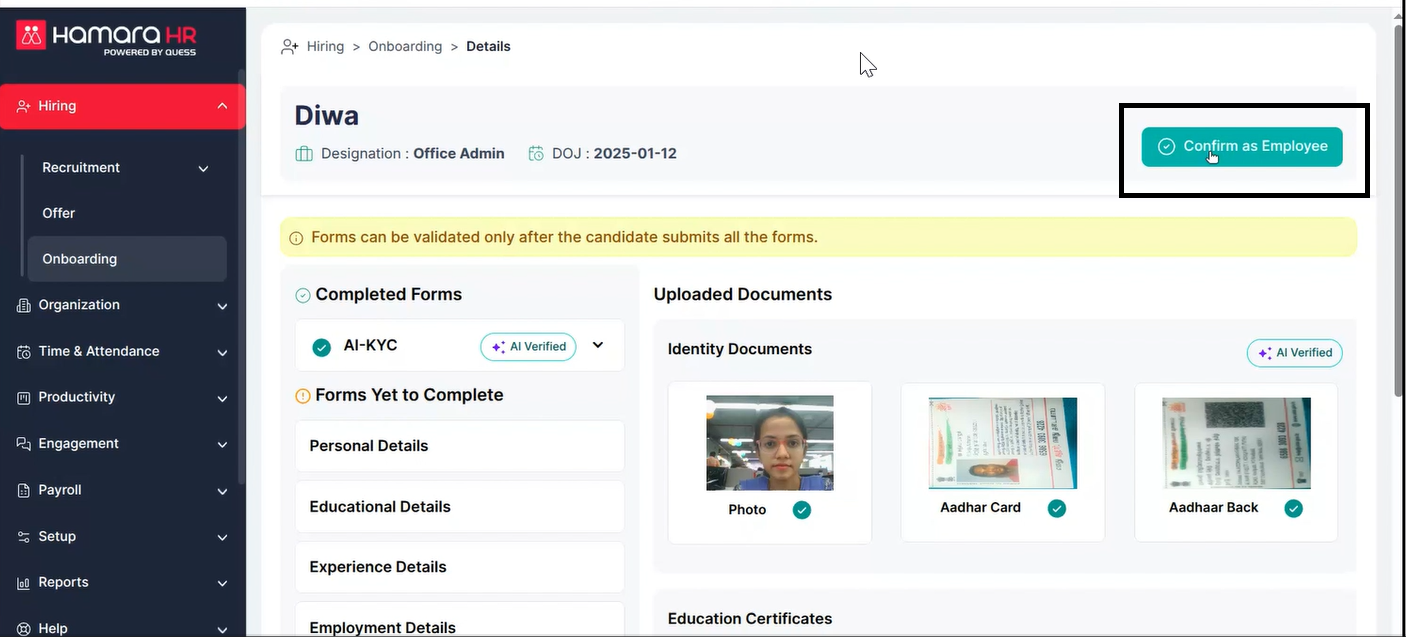
Once validated and onboarded we can select the candidate as a employee once clicking on it the employee will be added to our portal
Was this article helpful?
That’s Great!
Thank you for your feedback
Sorry! We couldn't be helpful
Thank you for your feedback
Feedback sent
We appreciate your effort and will try to fix the article