Employee Map Tracking in Hamara HR helps monitor the real-time location of employees. This feature can be enabled through specific flags in super admin for employees, Managers, and Indirect Reportees, allowing location tracking via mobile or better monitoring.
Super Admin Configuration
1. Employee Map Tracking (Retail)
Functionality: Enable this flag under Retail to track the real-time location of field employees.
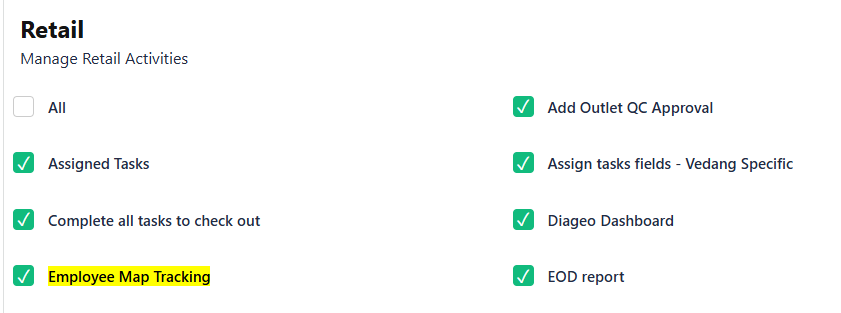
2. Employee Map Tracking for Managers (Mobile)
Functionality: Enable this option to allow managers to view the location of their team members through the mobile application.
3. Employee Map Tracking for Indirect Reportees (Mobile)
Functionality: Enable this flag to allow managers to track not only their direct reportees but also indirect reportees.

_____________________________________________________________________________________________________________________________________
Customer Admin Configuration
Step 1: Enable Map Tracking in Role Group
Navigation Path:
Setup → Permissions → Role Group
(Map tracking can be enabled for both Manager as well as Custom role group type)
Under: ESS Management → Attendance
Enable the following options:
- Employee Map Tracking for Managers (Mobile)
Example:
- User: 123123123
- L1 Manager: 12432
If "Employee Map Tracking for Managers (Mobile)" is enabled, the L1 Manager will be able to view the map tracking for His /Her Reportees.
- Employee Map Tracking for Indirect Reportees (Mobile)
Example:
- User: 123123123
- L1 Manager: 12432
- L2 Manager: 888888
- L3 Manager: 34568
If “Employee Map Tracking for Indirect Reportees (Mobile)” is enabled, the L3 Manager will be able to view map tracking not only for L2 reportees but also for L1 reportees.
Step 2: Mapping for FS Head / Outlet Head (If Required)
If the user is tagged as an FS Head or Outlet Head, ensure the created role group is mapped accordingly to the user.
a. To Map FS Head
Navigation Path:
Setup → Permissions → Functional Structure (FS Head)
b. To Map Outlet Head
Navigation Path:
Setup → Work Locations → Manage Work Locations (Outlet Head)
Note:
Ensure the correct role group is assigned to the respective users (FS Head / Outlet Head) for the map tracking functionality to work as expected.
_____________________________________________________________________________________________________________________________________
For all the Managers (To view both direct and indirect reportees
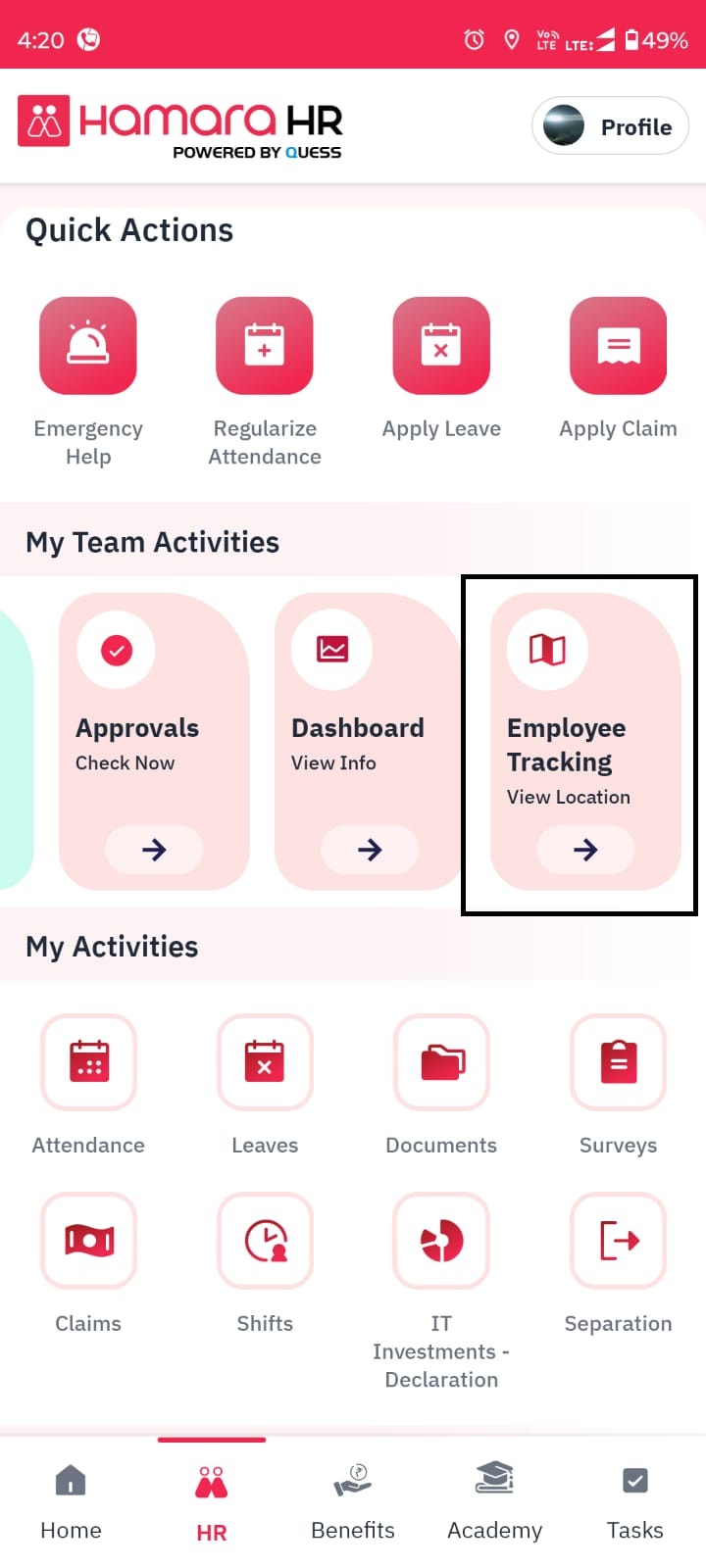
In the Mobile App, navigate to:
HR Page → My Team Activities → Employee Map Tracking.
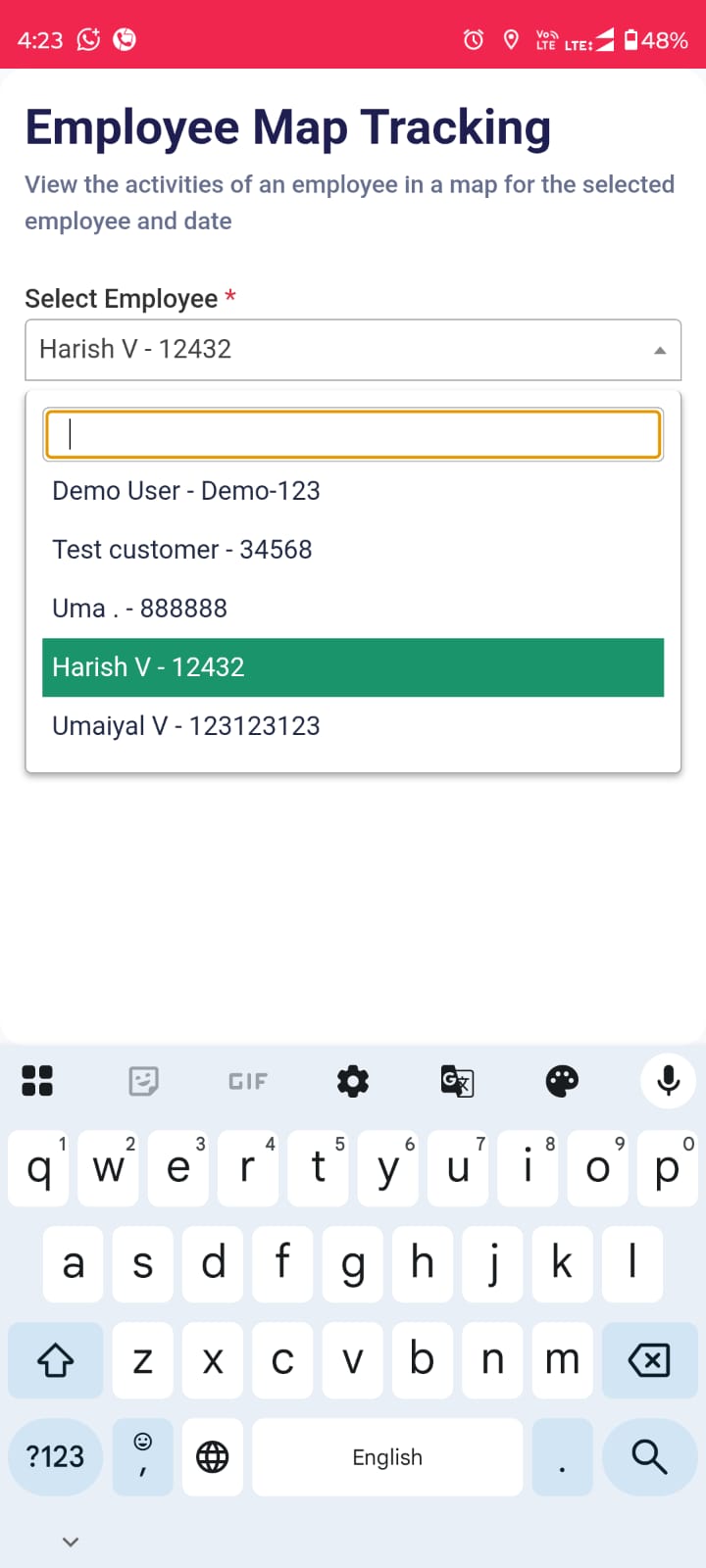
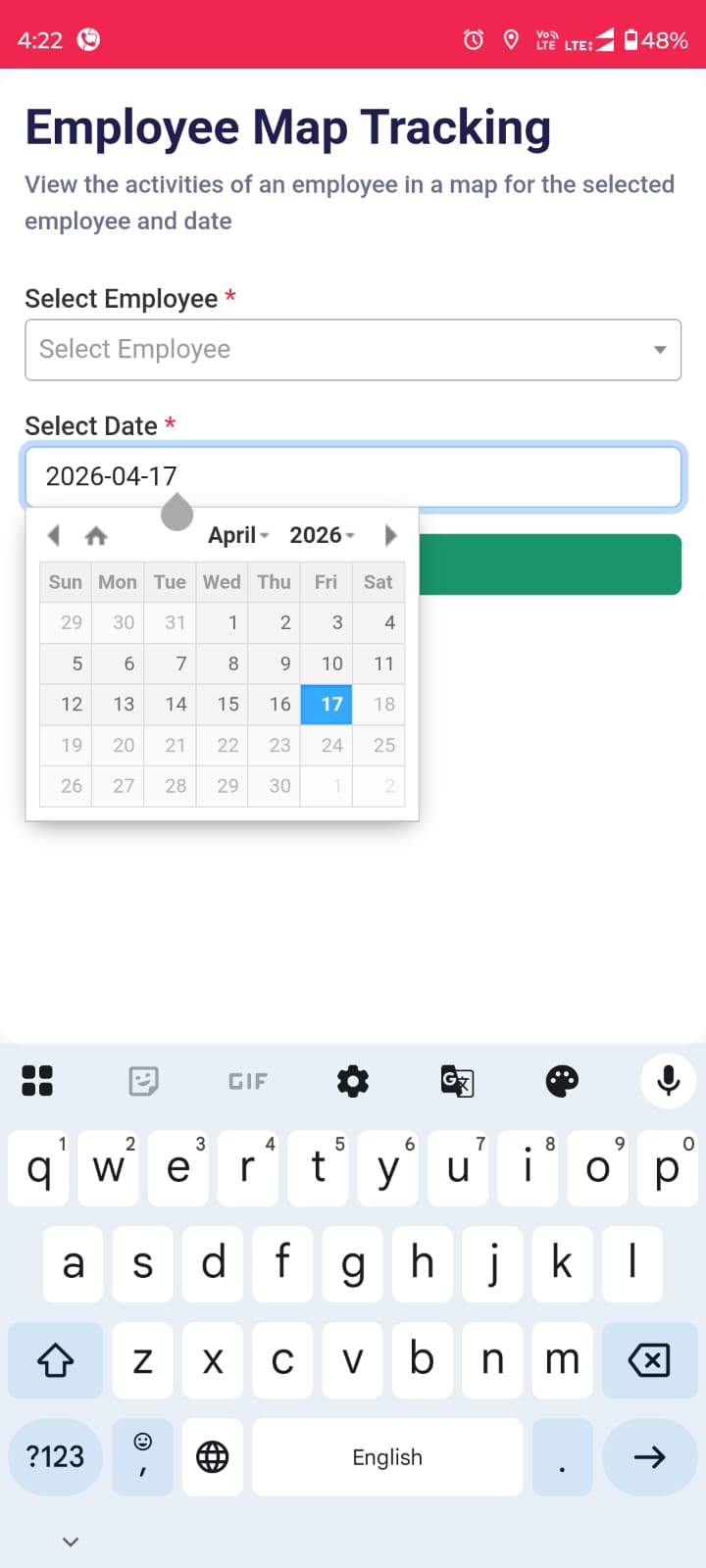
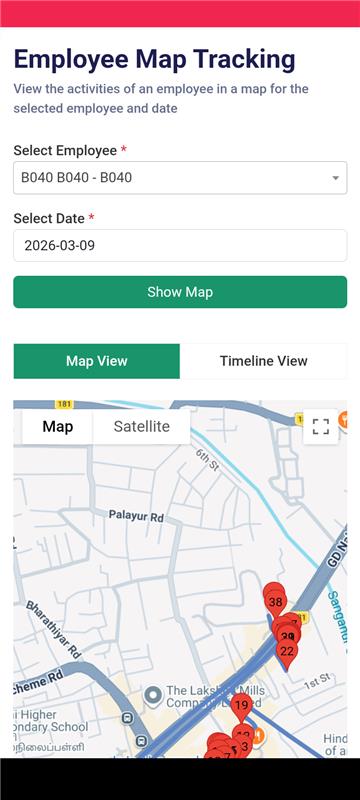
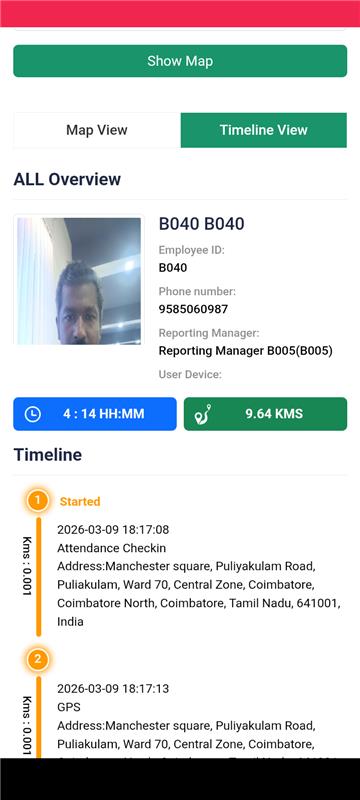
Click on ‘Employee Map Tracking’ → Select the Employee → Select the Date → Click on ‘Show Map’.
This will capture the distance travelled by the employee from check-in to check-out.
_____________________________________________________________________________________________________________________________________
Was this article helpful?
That’s Great!
Thank you for your feedback
Sorry! We couldn't be helpful
Thank you for your feedback
Feedback sent
We appreciate your effort and will try to fix the article