In the Customer Admin panel, you can configure how employees are compensated for working beyond their regular working hours, including holidays and week-offs, based on the overtime configuration.
Step 1: Create a Comp-Off Leave Type
Navigate to: Time & Attendance → Leave → Leave Types → Add New
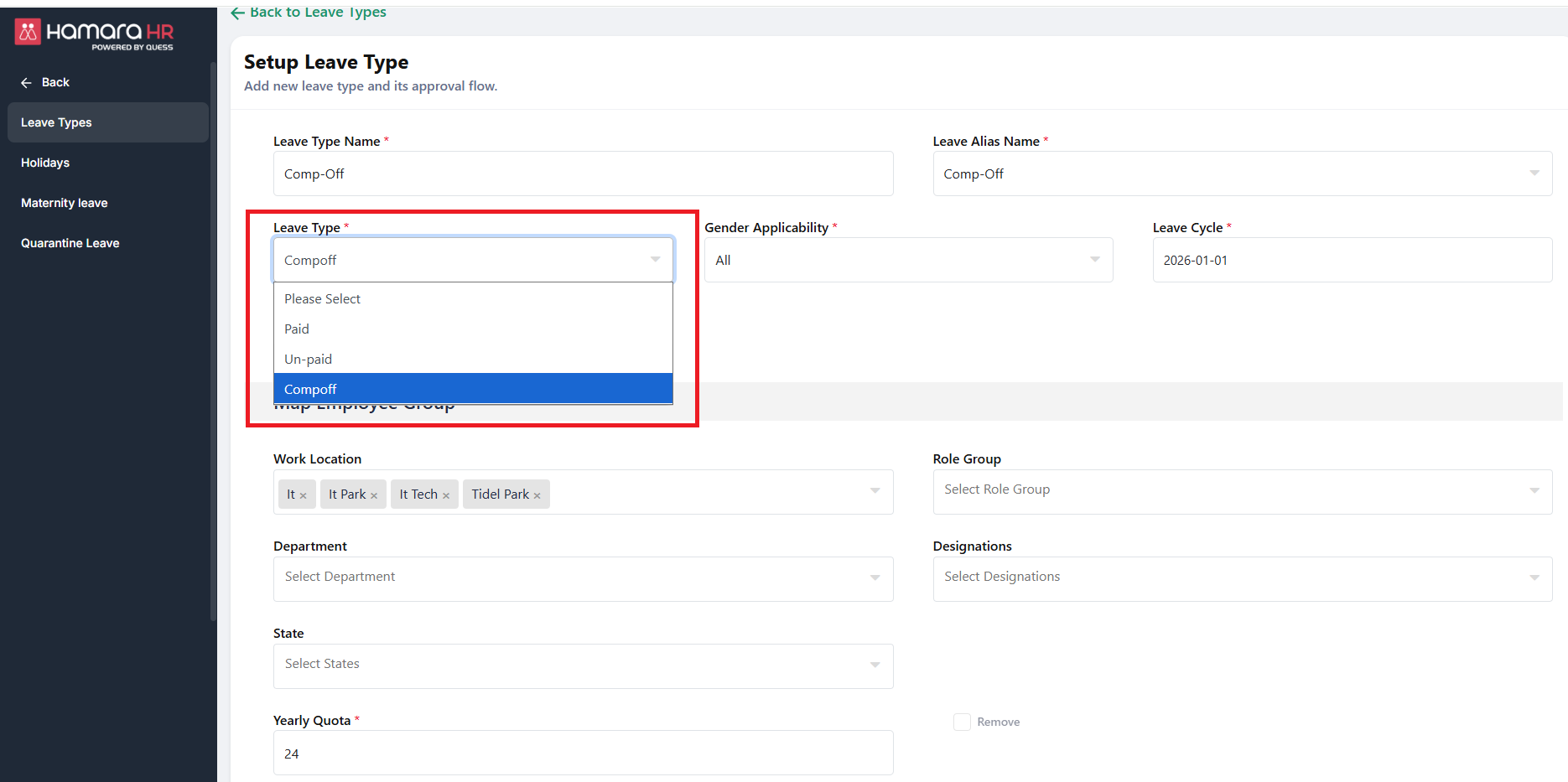
Create a new leave type named “Comp-Off”.
Set the Leave Type as Comp-Off.
Then, enter all the required fields and complete the configuration for this leave type as per your requirement.
This leave type will be used to grant compensatory off for employees who work on holidays or week-offs.
Step 2: Create a Overtime policy
Navigate to: Time & Attendance → Attendance-->Overtime
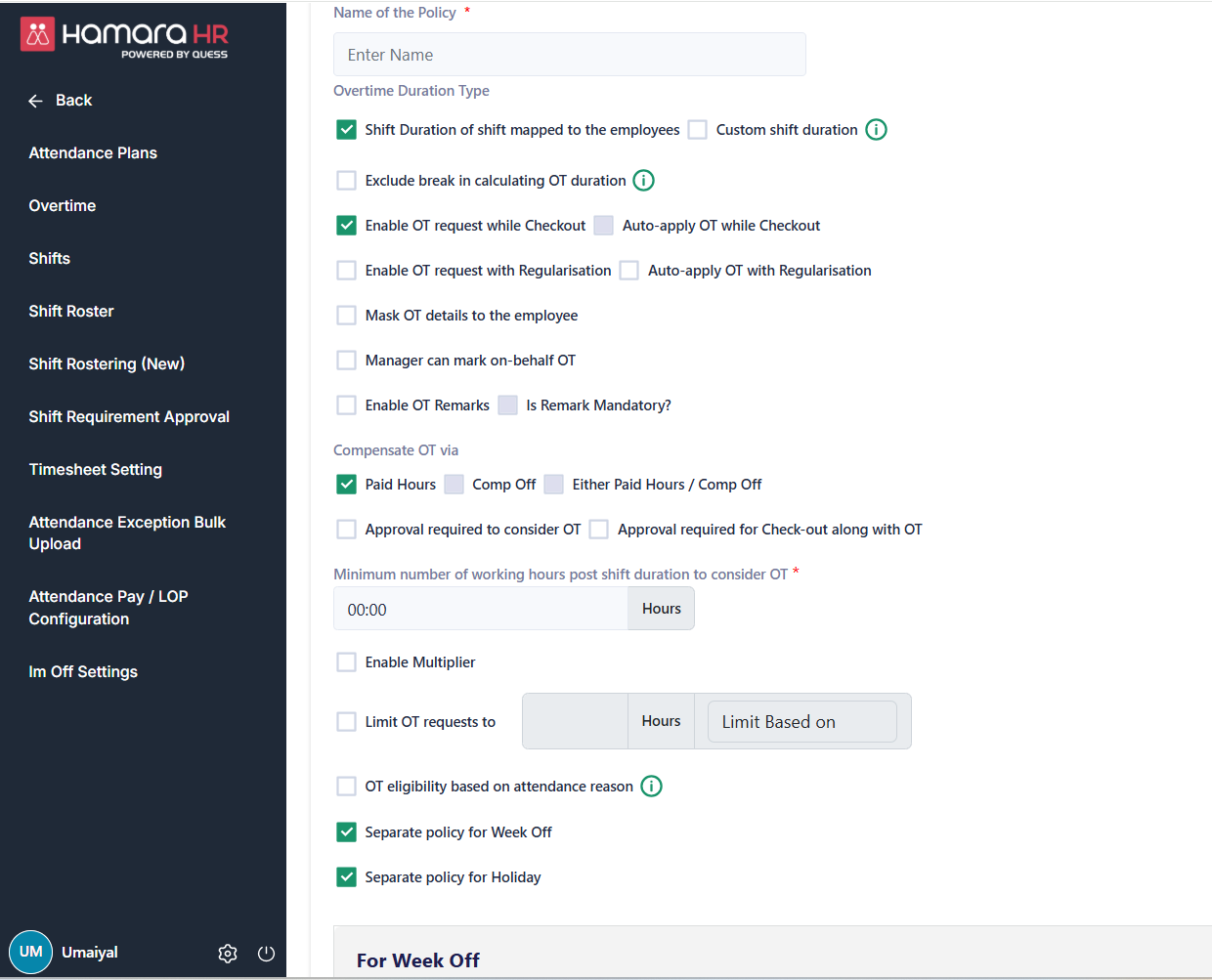
Name of the policy:
Overtime Duration Type
1. Shift Duration
- Overtime is calculated based on the assigned shift hours of the employee
- Overtime starts only after completing the shift duration
Example:
If Shift = 9 hours → Overtime starts after 9 hours
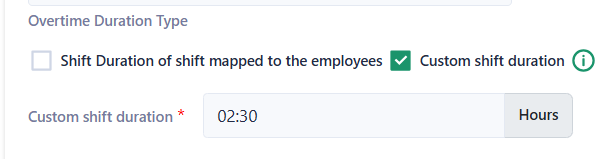
2. Custom Shift Duration
- You can define a custom working duration instead of using shift timings
Note:
If the employee’s regular full-day working hours are more than the custom shift hours,
then the system will only consider the regular full-day hours, not the shorter custom shift.
Example:
- Full day = 9 hours
- Custom shift = 6 hours
System will still treat it as 9 hours (full day), not 6
3. Exclude break in calculating OT duration-
- Break time will not be counted in OT calculation
Note:
Final work time = Total time worked − Break time
Example:
Total work time = 9 hours
Break = 1 hour
Final work time = 8 hours
4. Enable OT request while Checkout
- Employee can apply OT at the time of checkout
5. Auto-apply OT while Checkout
- OT will be automatically applied during checkout without manual request
6. Enable OT request with Regularisation
- OT can be applied during attendance regularization
7. Auto-apply OT with Regularisation
- OT will be auto-calculated when regularization is done
8. Mask OT details to the employee
- Employees cannot see OT calculation details
9. Manager can mark on-behalf OT
- Manager can apply OT for employees
10. Enable OT Remarks
- Employees/Managers can add remarks for OT
11. Is Remark Mandatory
- Remarks is compulsory
Compensate OT via
12. Paid Hours
- OT is paid as extra salary
Minimum number of working hours post shift duration
- Minimum extra hours required to consider OT
- Example: 1 hr → OT starts only after the shift duration gets over 1 hr extra work
13.Comp Off
- OT is converted into Comp off leave (leave balance will be added)
Minimum working hours post shift duration to credit half Comp Off leave
Minimum no. of working hours must work after completing their shift duration to become eligible for Half-Day Comp Off.
Example:
Shift Duration = 9 hours
Minimum hours for Half Comp Off = 4 hours
If an employee works 9 + 4 = 13 hours, they will be eligible for Half-Day Comp Off.
Minimum working hours post shift duration to credit one Comp Off leave
Minimum no. of working hours must work after completing their shift duration to become eligible for Full-Day Comp Off.
Example:
- Shift Duration = 9 hours
- Minimum hours for One Comp Off = 8 hours
If an employee works 9 + 8 = 17 hours, they will be eligible for One Full Comp Off.
14. Either Paid Hours / Comp Off
- Both options available
Minimum number of working hours post shift duration
Minimum working hours post shift duration to credit half Comp Off leave
Minimum working hours post shift duration to credit one Comp Off leave
15. Approval required to consider OT
- OT will be valid only after approval
16. Approval required for Check-out along with OT
- Checkout + OT both need approval
If Yes, choose the required workflow from the dropdown list.
Note: Only workflows that have already been created in the Admin Panel will be listed in the dropdown. If the required workflow is not listed, create it first in the Admin Panel.
17. Enable Multiplier
- Apply OT rate multiplier (e.g., 2 x pay)
18.Limit OT requests to
- Restrict OT to maximum hours Eg: 20 hrs
- Limit based on Attendance cycle or Calender month
Example:
- Maximum OT Limit = 20 hours
- Attendance Cycle: Employees can request up to 20 OT hours within the configured attendance cycle. (21st to 20th)
- Calendar Month: Employees can request up to 20 OT hours between the 1st and the last day of the month.
19. OT eligibility based on attendance reason
- OT allowed only for specific attendance reasons (Eg: WFH)
20. Separate policy for Week Off
- Different OT rules for week-offs
21. Separate policy for Holiday
- Different OT rules for holidays
Step 3: Create a Separate Overtime policy for Week off
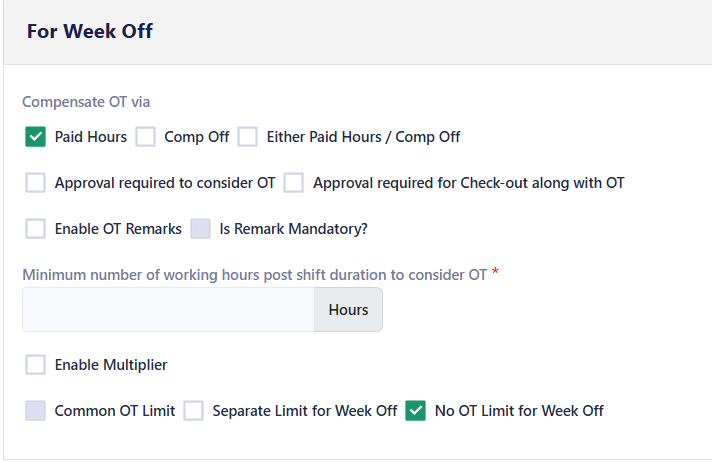
Separate policy for Week off
22. Compensate OT Via
Note: The functionality of the below flags is the same as the Common OT Policy. Kindly refer to S.No. 12 to S.No. 18 for the detailed explanation of each flag.
Separate approval workflow can be created for Week off
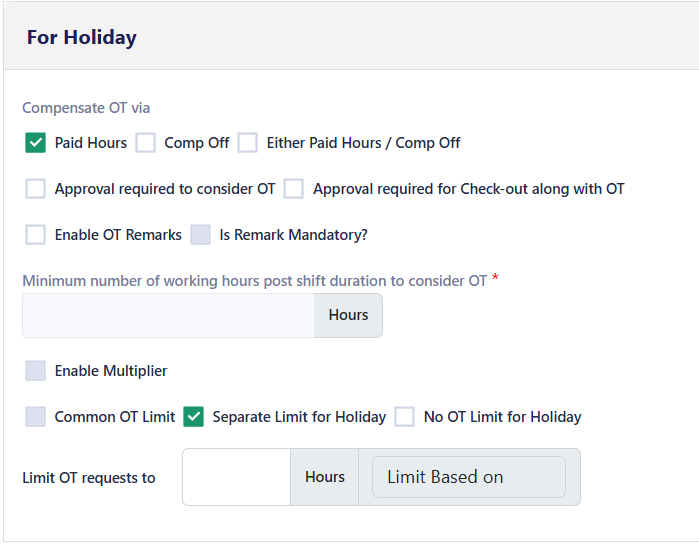
Step 4: Create a Separate Overtime policy for Holiday
Separate policy for Holiday
23. Compensate OT Via
Note: The functionality of the below flags is the same as the Common OT Policy. Kindly refer to S.No. 12 to S.No. 18 for the detailed explanation of each flag.
Separate approval workflow can be created for Holiday.
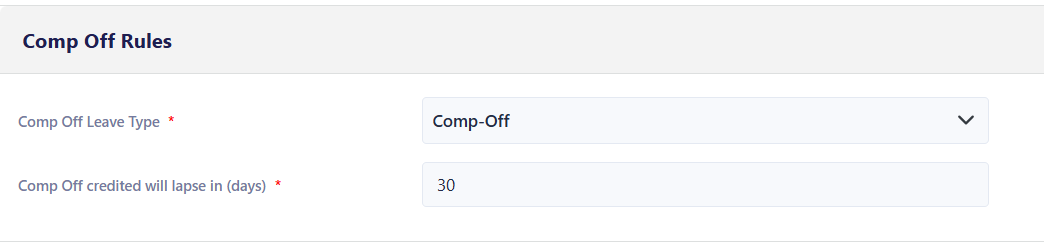
Step 5: Configure the Comp off rules
Comp off rules
24. Comp off leave type- Select the leave type that will be credited to the employee when they become eligible for Comp Off.
25. Comp off credited will be lapse in (Days)- Specify the number of days after which the credited Comp Off leave will expire if it is not used by the employee.
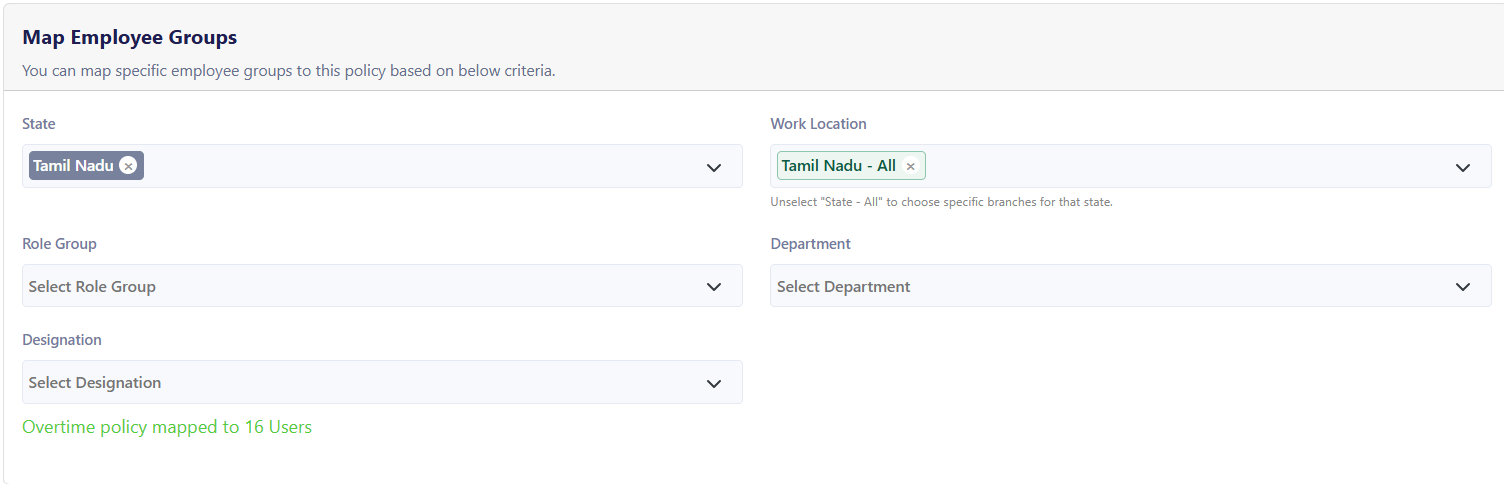
Step 6: Mapping the required filters
Select one or more filters to which the overtime policy should be applied.
Was this article helpful?
That’s Great!
Thank you for your feedback
Sorry! We couldn't be helpful
Thank you for your feedback
Feedback sent
We appreciate your effort and will try to fix the article